
NavGear V35-1
In order to update your GPS device: NavGear V35-1 with the latest update, follow next instructions.
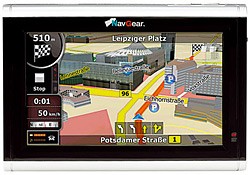
First of all, be sure you got the update file for your NavGear V35-1 device, downloaded from SpeedcamUpdates.com.
If still haven't got it, you can get it now filling the form you see on this page.
- Extract files from the SpeedcamUpdates zip package. If the file you have downloaded is not a ZIP file means the file is already decompressed, and you can continue with the next step of this installation instructions.
- In order to complete your installation you have to choose your installation method depending on the capabilities of your NavGear V35-1 device. If your device supports usb connection, you have to connect it to your PC. Once your device is detected by your PC, look for in the new storage drive, the folder containing the information we want to update. Usually it is contained in ".../CONTENT/speedcam". If your device uses SD memory card, extract it, and plug it into your PC to have access to the folders. Look for the folder ".../CONTENT/speedcam". Remove any previously file contained in the ".../CONTENT/speedcam" folder. (txt file, spud file, spb file ) Copy the unzipped files into that folder (usually it should be a txt file). Then restart your GPS device. The new spud and spb files will be created by the device. Installation is complete.
Remember you can customize freely your download. Get access to the customer control panel and using the customization tool in order to get a customized speedcam database according to your needs. You will need this tool if your device doesn't accept the size of the new update. You can add and remove countries speedcam data to your current setup.
NavGear V35-1 Speed Camera Update Information
The NavGear V35-1 GPS device offers comprehensive map coverage, ensuring you have access to the latest road information. Regular map database updates are essential for maintaining accurate navigation. These updates include new roads, changes in traffic patterns, and updated points of interest (POIs). To keep your navigation system functioning optimally, it is recommended to check for updates periodically. By downloading the latest map updates, you can enhance your travel experience and avoid potential navigation errors caused by outdated information.
Updating your NavGear V35-1 is a straightforward process that can be done via USB or SD card. Begin by downloading the latest map updates from the official NavGear website. Once downloaded, connect your device to your computer using a USB cable or insert the SD card into your computer. Transfer the update files to the appropriate directory on your device or SD card. After the transfer is complete, safely eject the device and restart it to ensure the new maps are loaded correctly. Follow the on-screen prompts to finalize the installation.
The NavGear V35-1 provides reliable route guidance, helping you navigate efficiently to your destination. With the integration of speed camera data, users can stay informed about potential speed traps along their route. This feature not only enhances safety but also aids in adhering to speed limits, reducing the risk of fines. The device offers clear audio and visual cues, ensuring you receive timely directions while driving. By utilizing the speed camera updates, you can make informed decisions and adjust your driving behavior accordingly.
Looking for additional GPS update information and compatible navigation systems?
GPS Update & Installation Guide