
Volkswagen Beetle (RNS 510)
In order to update your GPS device: Volkswagen Beetle (RNS 510) with the latest update, follow next instructions.
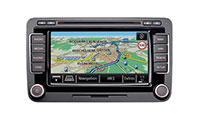
First of all, be sure you got the update file for your Volkswagen Beetle (RNS 510) device, downloaded from SpeedcamUpdates.com.
If still haven't got it, you can get it now filling the form you see on this page.
- Extract files from the SpeedcamUpdates zip package. If the file you have downloaded is not a ZIP file means the file is already decompressed, and you can continue with the next step of this installation instructions.
- Insert an SD card into your PC and extract the contents of the zip file downloaded from SpeedcamUpdates.com into the SD card.
- Press button SETUP on the right side of your Volkswagen Beetle (RNS 510) GPS device.
- Touch the Navigation button on the screen.
- Touch Personal POI button on the screen.
- Touch import button on the screen.
- Press the button to import data.
- Finally press OK button to finish import process.
- Now you can setup the speed cameras categories to set the distance alert.
Remember you can customize freely your download. Get access to the customer control panel and using the customization tool in order to get a customized speedcam database according to your needs. You will need this tool if your device doesn't accept the size of the new update. You can add and remove countries speedcam data to your current setup.
Volkswagen Beetle (RNS 510) Speed Camera Update Information
The Volkswagen RNS 510 navigation system comes pre-installed with 2015 North American maps, covering the USA, Canada, and Mexico. To ensure optimal navigation performance, it is essential to keep the map database updated. Regular updates can enhance route accuracy, provide new points of interest, and improve overall navigation efficiency. Users should check for available map updates periodically, as outdated maps may lead to incorrect directions or missing locations. Keeping the map database current is crucial for a seamless driving experience, especially in unfamiliar areas.
Updating the RNS 510 navigation system is straightforward. Users can perform updates via USB or SD card. To begin, download the latest map update files from a trusted source onto your computer. Next, transfer these files to a USB drive or SD card formatted to FAT32. Insert the USB or SD card into the RNS 510 unit, then access the navigation settings on the device. Follow the on-screen prompts to initiate the update process. Ensure the vehicle is in a safe location during the update to avoid interruptions.
The RNS 510 provides reliable route guidance, offering turn-by-turn directions to help drivers navigate efficiently. Users can input their destination through the interface, and the system will calculate the best route based on current map data. Additionally, the RNS 510 can alert users to speed camera locations, enhancing driving safety. It is important to ensure that the map database is up to date to receive accurate alerts and guidance. Regularly updating the system will help maintain its effectiveness in providing timely and precise navigation assistance.
Looking for additional GPS update information and compatible navigation systems?
GPS Update & Installation Guide