
Volkswagen Amarok (RNS 510)
In order to update your GPS device: Volkswagen Amarok (RNS 510) with the latest update, follow next instructions.
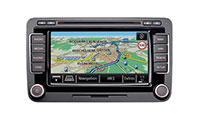
First of all, be sure you got the update file for your Volkswagen Amarok (RNS 510) device, downloaded from SpeedcamUpdates.com.
If still haven't got it, you can get it now filling the form you see on this page.
- Extract files from the SpeedcamUpdates zip package. If the file you have downloaded is not a ZIP file means the file is already decompressed, and you can continue with the next step of this installation instructions.
- Insert an SD card into your PC and extract the contents of the zip file downloaded from SpeedcamUpdates.com into the SD card.
- Press button SETUP on the right side of your Volkswagen Amarok (RNS 510) GPS device.
- Touch the Navigation button on the screen.
- Touch Personal POI button on the screen.
- Touch import button on the screen.
- Press the button to import data.
- Finally press OK button to finish import process.
- Now you can setup the speed cameras categories to set the distance alert.
Remember you can customize freely your download. Get access to the customer control panel and using the customization tool in order to get a customized speedcam database according to your needs. You will need this tool if your device doesn't accept the size of the new update. You can add and remove countries speedcam data to your current setup.
Volkswagen Amarok (RNS 510) Speed Camera Update Information
The RNS 510 navigation system for the Volkswagen Amarok comes pre-installed with 2015 North American maps, covering the USA, Canada, and Mexico. To ensure optimal performance, it's essential to keep the map database updated. Regular updates can enhance route accuracy, add new roads, and improve points of interest. Users should check for the latest map versions periodically to benefit from the most current navigation data. This ensures that the navigation system remains reliable and effective for all travel needs.
Updating the RNS 510 navigation maps can be accomplished through USB or SD card installation. First, download the latest map update files from a trusted source onto your computer. Next, transfer these files to a USB drive or SD card formatted to FAT32. Insert the USB or SD card into the RNS 510 unit, then access the navigation settings to initiate the update process. Follow the on-screen prompts to complete the installation. Ensure that the vehicle is in a safe location during the update to avoid interruptions.
The RNS 510 provides detailed route guidance, helping drivers navigate efficiently to their destinations. It features turn-by-turn directions and can recalculate routes if you deviate from the planned path. Additionally, the system can alert users to speed camera locations, enhancing driving safety and compliance with traffic regulations. To utilize these features, ensure that the navigation settings are correctly configured and that the map database is up to date for the best experience.
Looking for additional GPS update information and compatible navigation systems?
GPS Update & Installation Guide