
Seat Toledo ( Navi System ) ( 6P0 )
In order to update your GPS device: Seat Toledo ( Navi System ) ( 6P0 ) with the latest update, follow next instructions.
First of all, be sure you got the update file for your Seat Toledo ( Navi System ) ( 6P0 ) device, downloaded from SpeedcamUpdates.com.
If still haven't got it, you can get it now filling the form you see on this page.
- Extract files from the SpeedcamUpdates zip package. If the file you have downloaded is not a ZIP file means the file is already decompressed, and you can continue with the next step of this installation instructions.
- Select the "NAV" tab
- Insert the SD card containing the downloaded and unzipped data in slot 2 of the GPS Device
- Select Memory administration.
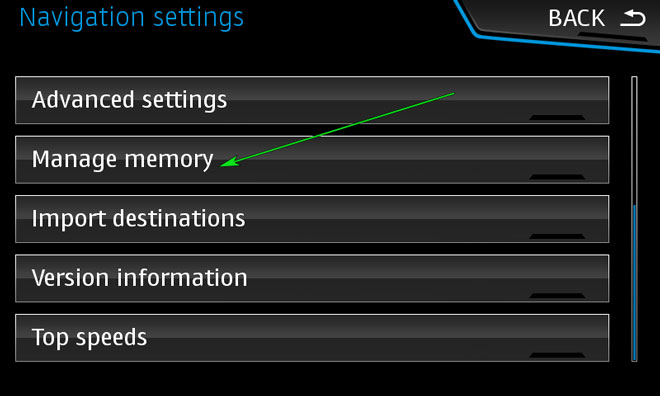
- Update my special destinations (POI)
- Select "Update my POI"
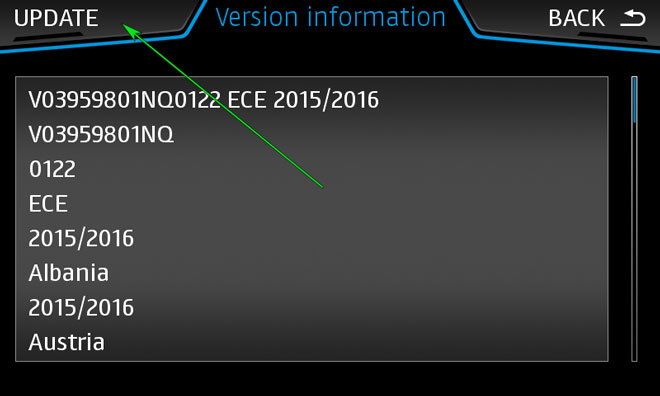
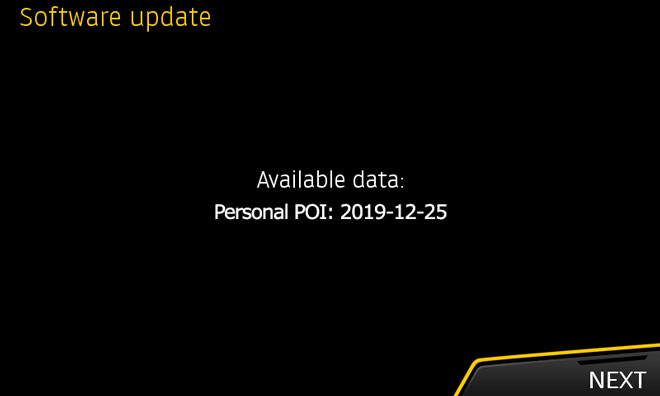
- When "Software Update Available" is shown on the screen, you have to select Update and Next
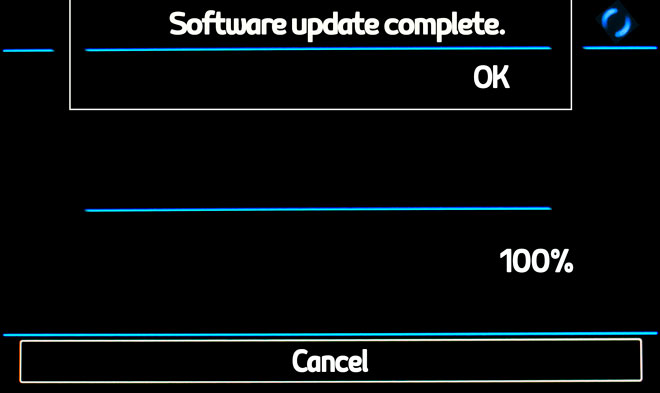
- When import procedure has finished then return to NAV
- Select "Map"
- Select "Show POI"
- Select "Show Categories"
- Scroll down till I see Speedcameras and tick them (mark with ?V?-sign).
- The cameras will be shown on the map. When you approach to the camera a weak warning sound is played. This could happen or not depending on the models.
If you get an error message when you're updating your device, follow next steps. Insert the SD card into your computer again. Copy the file named 'metainfo2.txt" contained in PersonalPOI/MIB2HIGH folder into the root of SD card replacing the meta2info.txt file that should be already there. Also copy completely the folder PersonalPOI into the root folder replacing the PersonalPOI folder already there. Extract the SD card from your computer and insert it into your GPS device again. Repeat the installation procedure.
Remember you can customize freely your download. Get access to the customer control panel and using the customization tool in order to get a customized speedcam database according to your needs. You will need this tool if your device doesn't accept the size of the new update. You can add and remove countries speedcam data to your current setup.
Seat Toledo ( Navi System ) ( 6P0 ) Speed Camera Update Information
The Seat Toledo Navi System (6P0) offers extensive map coverage, ensuring accurate navigation across various regions. To keep your navigation experience optimal, regular map database updates are essential. The latest updates include detailed mapping of millions of square kilometers, enhancing route accuracy and providing updated points of interest. For users looking to update their maps, the SEAT V12 Navigation AS SD Card is a reliable option, featuring the most recent map data for Europe. Staying current with map updates allows for improved navigation efficiency and helps avoid outdated routes.
To update the maps on your Seat Toledo Navi System, you will need the SD card containing the previous map data, which is typically located in SD card slot 2. Begin by removing the existing SD card and inserting the new map update SD card, such as the Genuine Seat V1 Satellite Navigation SD Card (6P0 919 866). Follow the on-screen prompts to initiate the update process. Ensure that your vehicle is parked and the ignition is on during the update to prevent any interruptions. Once the update is complete, safely eject the SD card and reinsert it to access the latest map data.
The Seat Toledo Navi System provides reliable route guidance, helping drivers navigate efficiently to their destinations. It includes features such as real-time traffic updates and alternative route suggestions. Additionally, the system can alert users to speed camera locations, enhancing driving safety and compliance with traffic regulations. By utilizing the updated maps, drivers can benefit from improved route accuracy and timely notifications, ensuring a smoother driving experience. Regular updates to the navigation system enhance these features, making it essential to keep your maps current.
Looking for additional GPS update information and compatible navigation systems?
GPS Update & Installation Guide