
Renault MediaNav - Evolution 3 (MN3)
In order to update your GPS device: Renault MediaNav - Evolution 3 (MN3) with the latest update, follow next instructions.
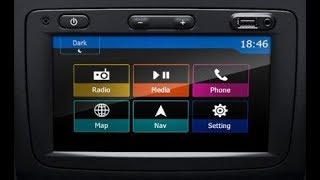
First of all, be sure you got the update file for your Renault MediaNav - Evolution 3 (MN3) device, downloaded from SpeedcamUpdates.com.
If still haven't got it, you can get it now filling the form you see on this page.
- Extract files from the SpeedcamUpdates zip package. If the file you have downloaded is not a ZIP file means the file is already decompressed, and you can continue with the next step of this installation instructions.
- Using an USB stick formatted in FAT32 copy all the files you extracted in the step before.
- Start your engine to power up your MediaNav device.
- Plug your usb stick into your MediaNav device.
- A popup message saying there is no media inserted will appear. Just ignore it.
- Wait around 30 seconds. If your USB stick has any led light, wait until this one stops blinking.
- Unplug your usb stick from your MediaNav device.
- Power off your MediaNav device by pressing Power button during 5 seconds.
- With your MediaNav device off, wait for 30 seconds.
- It will take some time to boot up. When you see the main menu, touch the NAV button.
- Navigator will take around 2 minutes to boot up. The bottom button will be grey, and you won't be able to touch it. Just wait.
- Once you get access again to the navigator, you can continue with the instructions to enable categories to be shown in the map.
- Once you are in the map. Touch the boton named as Destination => Options => Warnings
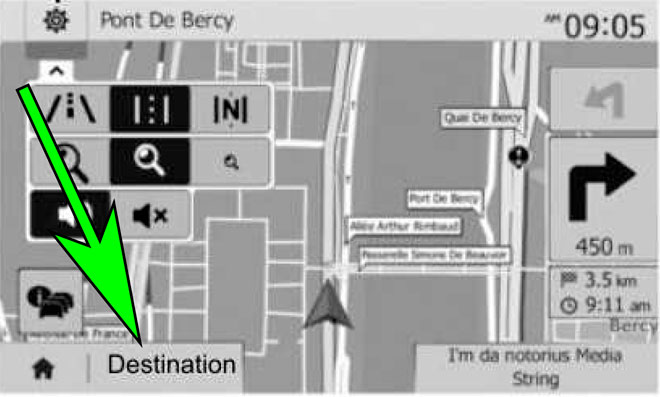
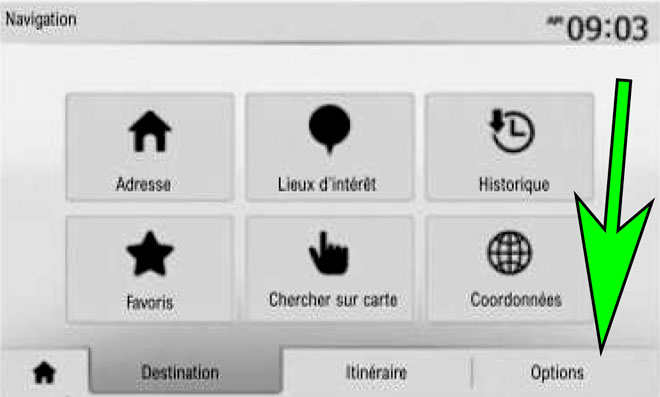
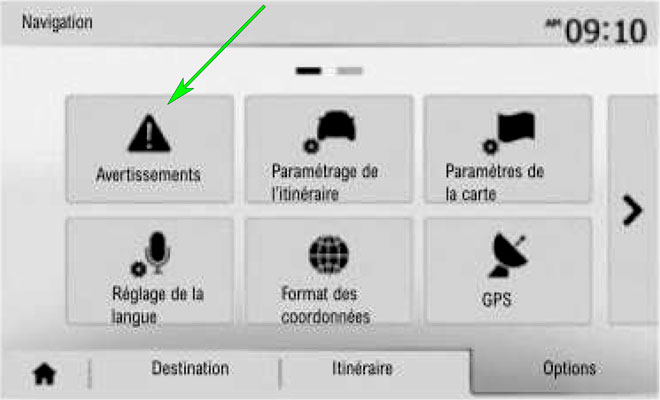
- Enable alert pois.
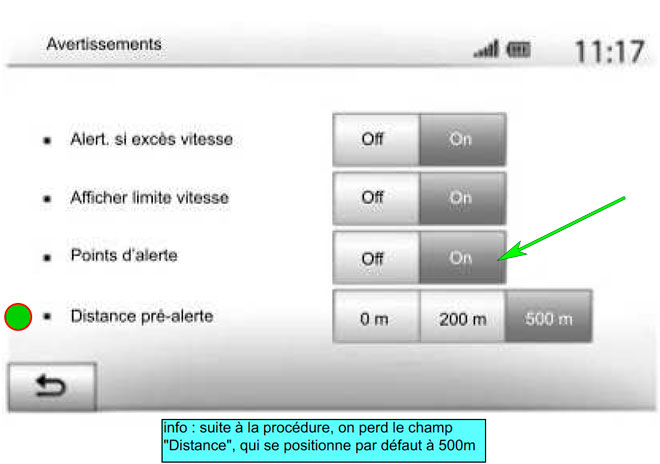
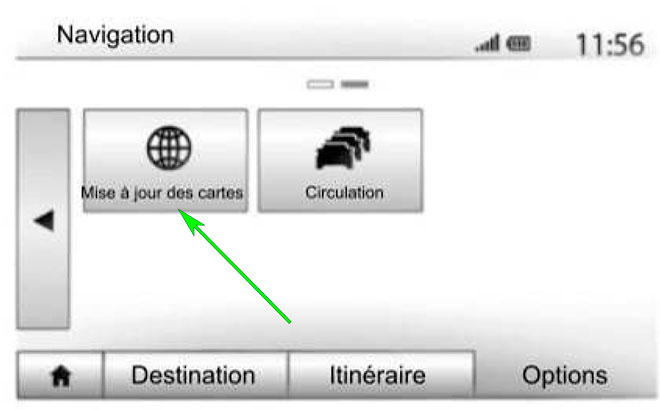
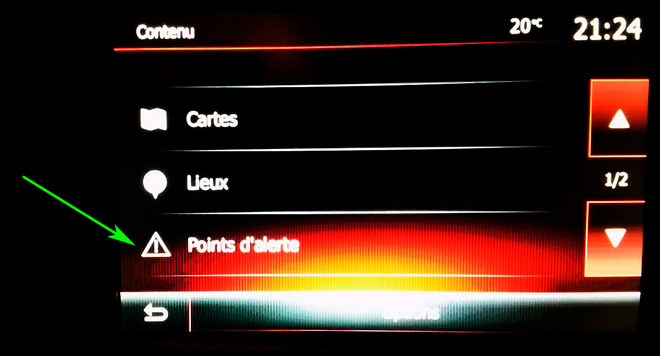
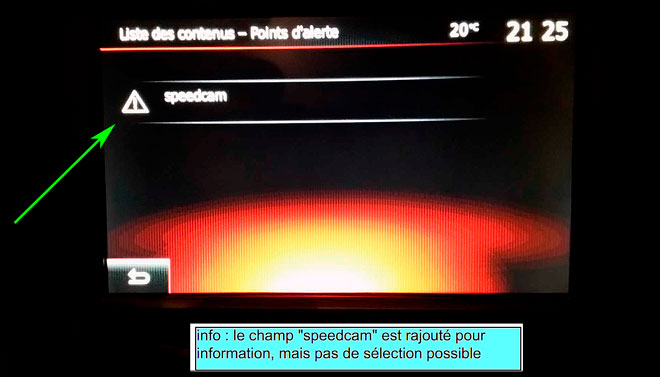
In order to see the SpeedcamUpdates icons on the map follow the next instructions. Valid for MediaNav devices MN1,MN2 and MN3.
Remember you can customize freely your download. Get access to the customer control panel and using the customization tool in order to get a customized speedcam database according to your needs. You will need this tool if your device doesn't accept the size of the new update. You can add and remove countries speedcam data to your current setup.
Renault MediaNav - Evolution 3 (MN3) Speed Camera Update Information
The Renault MediaNav - Evolution 3 (MN3) provides comprehensive map coverage to ensure accurate navigation. Regular map updates are essential for maintaining the reliability of your GPS navigation system. These updates enhance the map database, incorporating new roads, changes in traffic patterns, and updated points of interest. To ensure optimal performance, it is recommended to check for updates periodically. Keeping your maps current allows for more precise route calculations and improved navigation accuracy, ultimately enhancing your driving experience.
To update the Renault MediaNav - Evolution 3 (MN3), you will need a USB drive or SD card. Begin by downloading the latest map updates from the Renault website. With your MediaNav device powered off, insert the USB or SD card containing the update files. Power on the device and wait for the main menu to appear. Follow the on-screen instructions to initiate the update process. Ensure that the device remains powered during the update to avoid any interruptions, which could lead to incomplete installations.
The Renault MediaNav - Evolution 3 (MN3) offers efficient route guidance, helping you navigate to your chosen destination with ease. The system calculates the best route based on real-time GPS data, providing turn-by-turn directions. Additionally, the device can alert you to speed camera locations along your route, enhancing your awareness and helping you adhere to speed limits. Utilizing these features effectively can lead to a smoother driving experience and improved navigation efficiency.
Looking for additional GPS update information and compatible navigation systems?
GPS Update & Installation Guide