
Porsche Cayenne
In order to update your GPS device: Porsche Cayenne with the latest update, follow next instructions.
First of all, be sure you got the update file for your Porsche Cayenne device, downloaded from SpeedcamUpdates.com.
If still haven't got it, you can get it now filling the form you see on this page.
- Extract files from the SpeedcamUpdates zip package. If the file you have downloaded is not a ZIP file means the file is already decompressed, and you can continue with the next step of this installation instructions.
- Do login into your Porsche account thru My Porsche
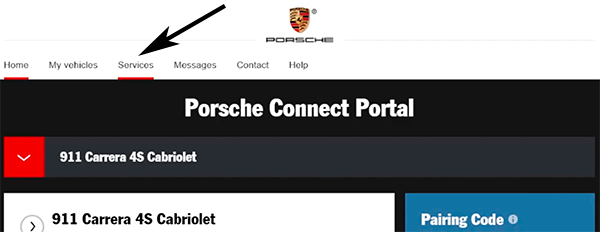
- Once you connected to MyPorsche website, select Services option.
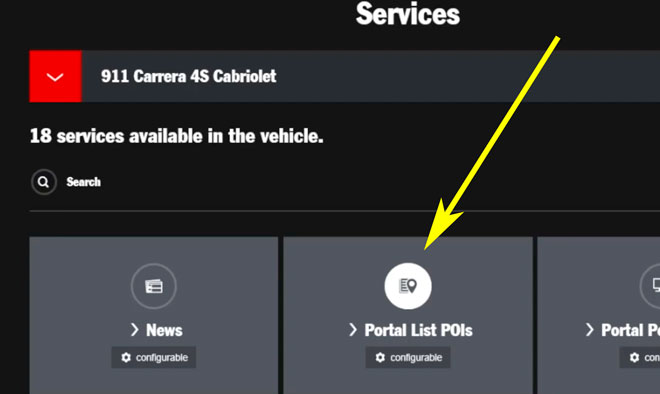
- Then, select Portal List POIs button.
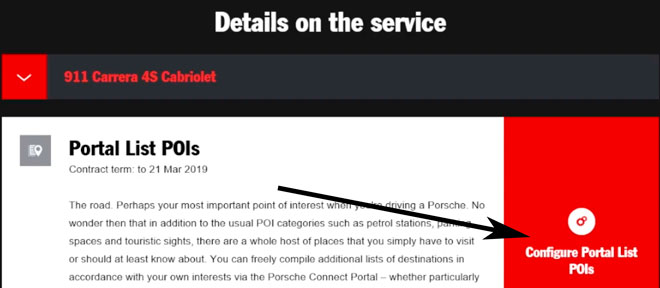
- Now, press Configure Portal List POIs button
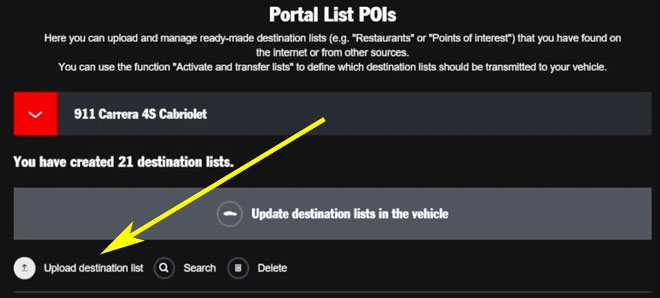
- Press upload destination list button.
- Press browse button.
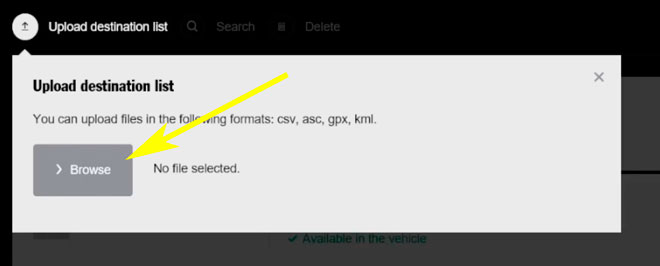
- You will need the files downloaded from our website.
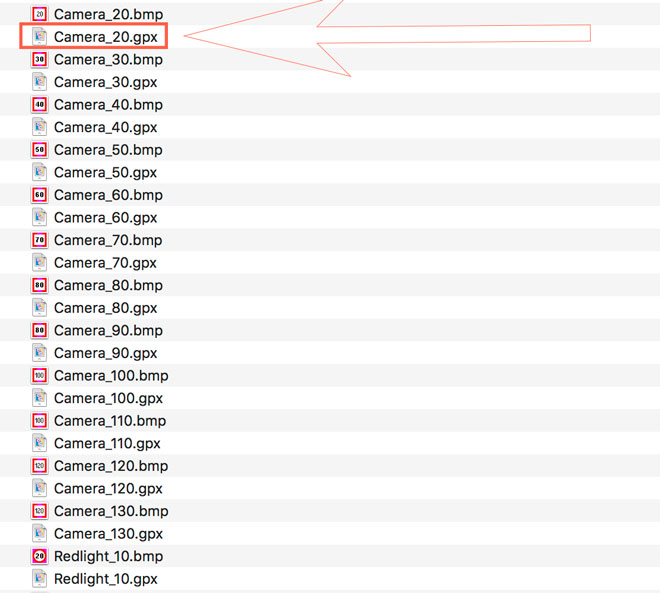
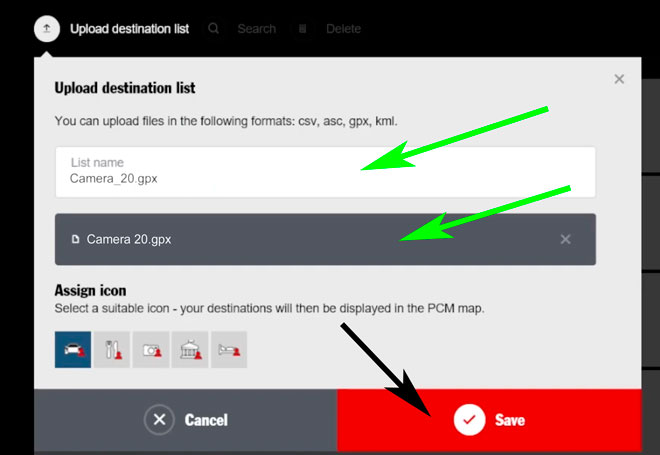
- Upload each file and save it.
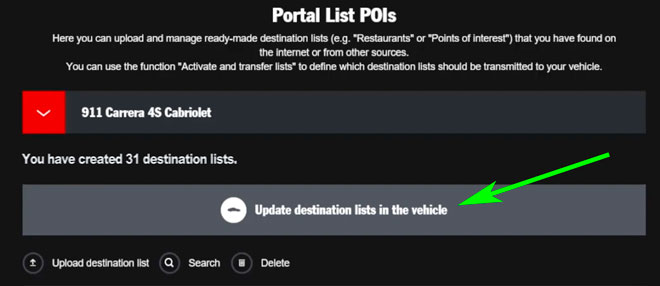
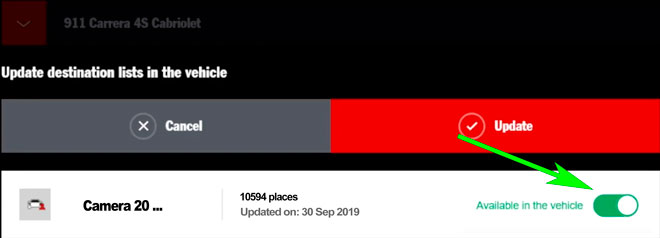
- Press now the button for updating the destination lists in your vehicle.
- Finally press the switch button and set it into the green state.
- Turn on your Porsche Cayenne GPS device.
- Press NAV button.
- Touch in the screen, the Special Destinations button.
- Now touch the Search Nearby button.
- Touch Portal Special Destinations.
- Touch Update List
- Select your user login to connect to the MyPorsche portal
- Touch the Online Update button.
- Check the box for downloading the new available package and press the start button.
- Now you can enable new pois to be shown in the map. Select MAP. Select OPT. Select Map View. Select Map Layers. Check the box for new POIs and select all the new categories still not checked.
- Audio warning can be enabled too. Select SET MAP. Select Notices. Select POI Proximity Warnings. Check the box for Enable Proximity Warnings feature.
Remember you can customize freely your download. Get access to the customer control panel and using the customization tool in order to get a customized speedcam database according to your needs. You will need this tool if your device doesn't accept the size of the new update. You can add and remove countries speedcam data to your current setup.
Porsche Cayenne Speed Camera Update Information
The Porsche Cayenne's GPS navigation system relies on a comprehensive map database to provide accurate and up-to-date routing information. Regular map updates are essential to ensure that your navigation system reflects the latest road changes, new developments, and updated points of interest. These updates can enhance your driving experience by improving route accuracy and helping you navigate to newer locations that may not have been included in older maps. To maintain optimal performance, it's advisable to check for map updates periodically, especially if you frequently travel to unfamiliar areas or if your home address has changed recently.
Updating the navigation maps in your Porsche Cayenne can be done through a straightforward USB or SD card installation process. First, ensure you have the latest map update files, which can typically be downloaded from the official Porsche website or authorized dealers. Insert the USB drive or SD card into the designated slot in your vehicle. Follow the on-screen prompts to initiate the update process. It’s important to allow the system to complete the update without interruption, as this ensures that all new data is properly installed. After the update, verify that the new maps are functioning correctly before your next journey.
The Porsche Cayenne's navigation system offers precise route guidance, helping you reach your destination efficiently. It provides turn-by-turn directions, recalculates routes in real-time, and can suggest alternative paths in case of traffic delays. Additionally, the system can alert you to speed camera locations, enhancing your awareness and helping you adhere to speed limits. To make the most of these features, familiarize yourself with the navigation interface and settings. This will allow you to customize your route preferences and ensure that you are utilizing the full capabilities of your Cayenne's navigation system.
Looking for additional GPS update information and compatible navigation systems?
GPS Update & Installation Guide