
Audi Q5 MMI Navigation plus
In order to update your GPS device: Audi Q5 MMI Navigation plus with the latest update, follow next instructions.
First of all, be sure you got the update file for your Audi Q5 MMI Navigation plus device, downloaded from SpeedcamUpdates.com.
If still haven't got it, you can get it now filling the form you see on this page.
- Extract files from the SpeedcamUpdates zip package. If the file you have downloaded is not a ZIP file means the file is already decompressed, and you can continue with the next step of this installation instructions.
Depending on the device version you will have to follow the installation method 1 or method 2. If you're not sure, please try first method 1, then method 2.
- Put an empty SD card into the PC card reader.
- Unzip the file downloaded from our website into the SD card
- Insert the SD card into the card reader of the Audi Q5 MMI Navigation plus GPS device.
Method 1
- Click on MENU option. Then click "Setup" on the control button.
- Select the option for "system update"
- Select the storage medium on which the data is stored.
Method 2
- Select navigation menu

- Select special destinations

- Select special destinations MyAudi
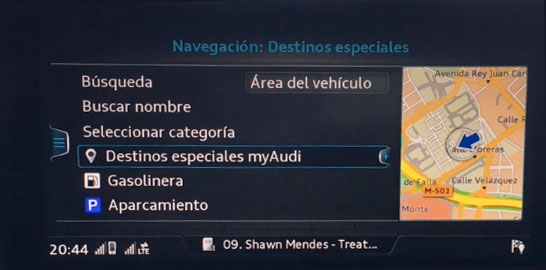
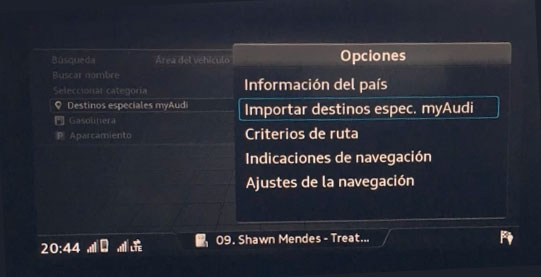
- Select: Import special destinations MyAudi
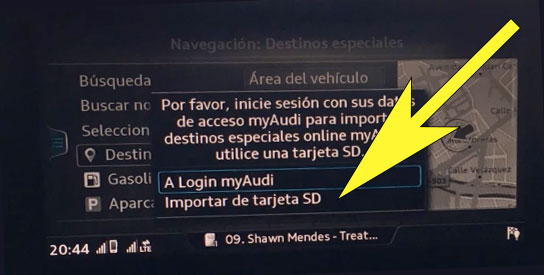
- Select: Import from SD card
- Follow next on screen steps to finish the import procedure. Once import procedure finished you can customize your notification setup following next steps.
- Select MAP Settings. Select Map Contents (MMI)
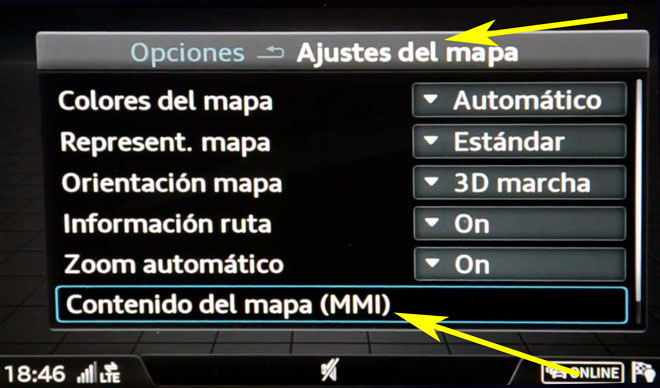
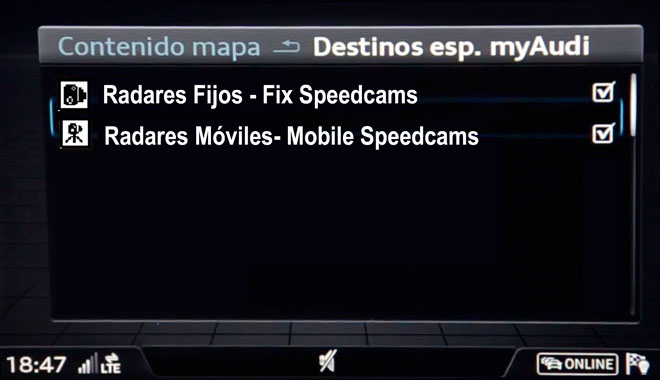
- Select myAudi Special Destinations
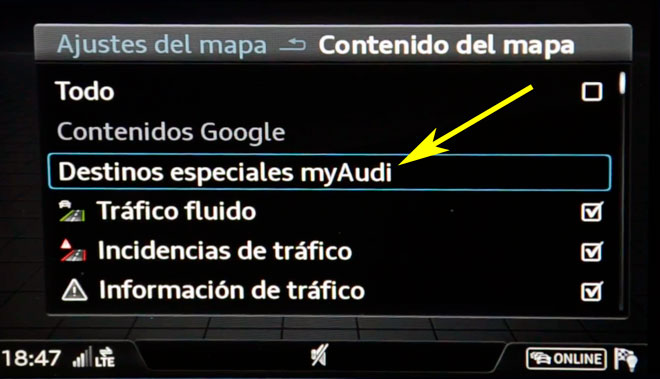
- Check all the categories you want to be shown in the map.
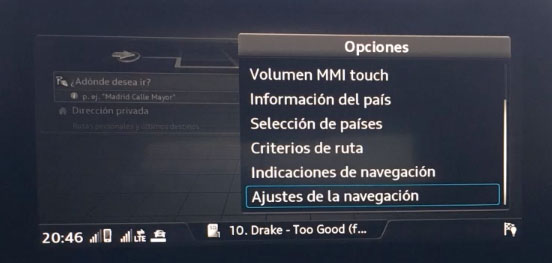
- Select navigation setup
- Select show warning and enable warning tone when approaching to the speed camera
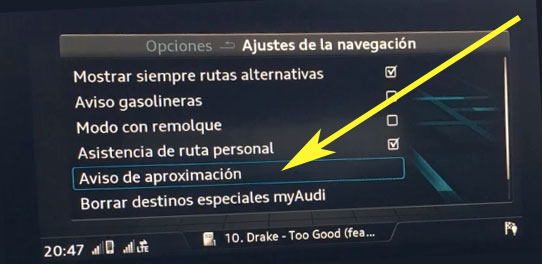
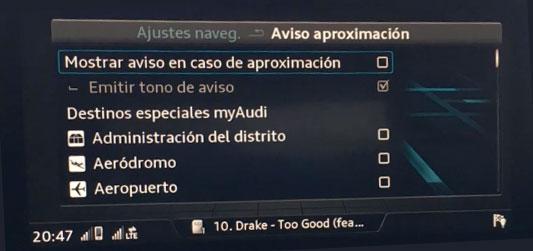
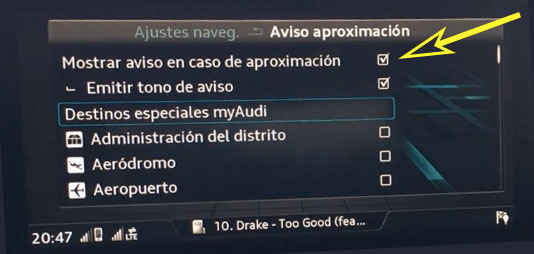
- Select maximum 10 categories you want to be warned
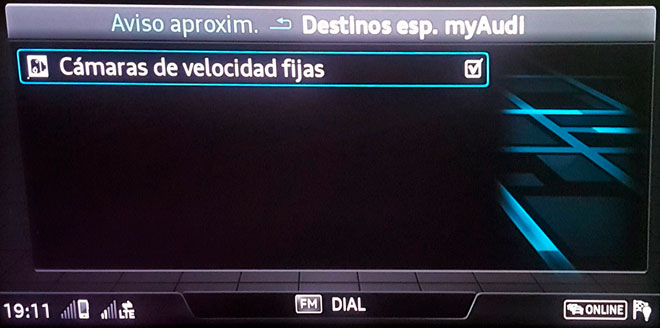
Depending on the firmware version that is installed on your device, it could be possible you can not hear alerts with sound when approaching to the speed camera. If your firmware is capable to warn you playing a sound, you can enable this feature in the points of interest setup. You can enable this feature checking that item in the items list of the map. If you can not find it you then will have to look to your reference manual. Can be located in different places depending on the firmware release.
Remember you can customize freely your download. Get access to the customer control panel and using the customization tool in order to get a customized speedcam database according to your needs. You will need this tool if your device doesn't accept the size of the new update. You can add and remove countries speedcam data to your current setup.
Audi Q5 MMI Navigation plus Speed Camera Update Information
The Audi Q5 MMI Navigation plus system offers extensive map coverage, ensuring that drivers have access to detailed and accurate navigation data. Regular map database updates are crucial for maintaining the reliability of the navigation system. These updates can include new roads, changes in traffic patterns, and updated points of interest, which enhance the overall navigation experience. Keeping the map data current helps prevent navigation errors and ensures that drivers can efficiently reach their destinations, even in complex urban environments where GPS signals may be challenged.
Updating the Audi Q5 MMI Navigation plus system is straightforward, utilizing USB or SD card installation methods. Users can download the latest map updates from the official Audi website onto a USB drive or SD card. Once the update files are transferred, the user can insert the device into the vehicle's MMI system, which will prompt the installation process. This method allows for a seamless update experience, ensuring that the navigation system remains up-to-date without the need for specialized tools or services.
The Audi Q5 MMI Navigation plus system provides precise route guidance, helping drivers navigate efficiently through various terrains. The system is designed to offer real-time directions, ensuring that users can follow the most optimal paths to their destinations. Additionally, the navigation system can alert users to speed camera locations, enhancing safety and compliance with traffic regulations. This feature is particularly useful in urban areas where speed limits may change frequently, allowing drivers to stay informed and avoid potential fines.
Looking for additional GPS update information and compatible navigation systems?
GPS Update & Installation Guide