
Magellan Roadmate 2200T
In order to update your GPS device: Magellan Roadmate 2200T with the latest update, follow next instructions.
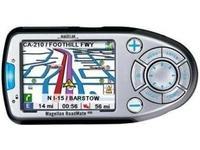
First of all, be sure you got the update file for your Magellan Roadmate 2200T device, downloaded from SpeedcamUpdates.com.
If still haven't got it, you can get it now filling the form you see on this page.
- Extract files from the SpeedcamUpdates zip package. If the file you have downloaded is not a ZIP file means the file is already decompressed, and you can continue with the next step of this installation instructions.
- Power on your Magellan Roadmate 2200T device and then connect it using USB cable to your PC.
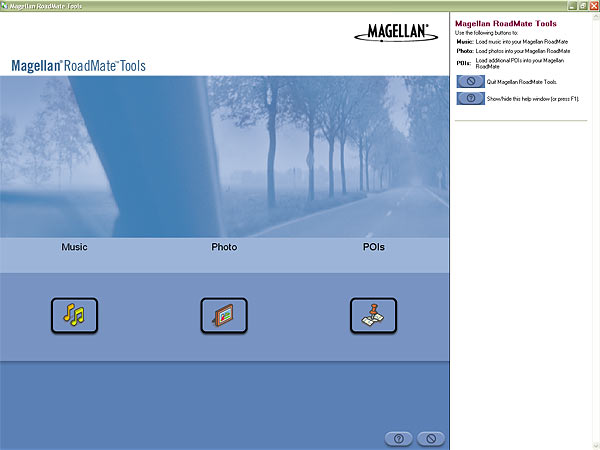
- Run the software "Magellan RoadMate Tools" and click POIs button.
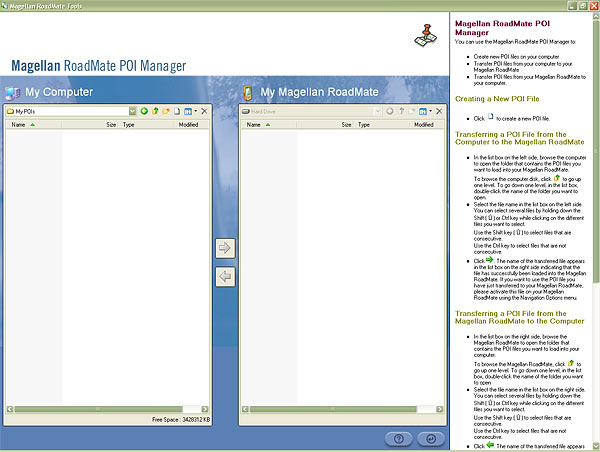
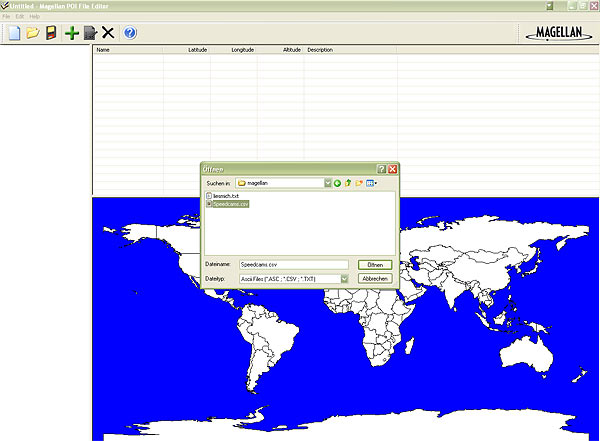
- Click on the Icon for creating a new POI file. Then "Magellan POI File Editor" will start automatically. Please go to File | Open and select data format ASCII Files (*.ASC ; *.CSV ; *.TXT). Open the folder containing the unzipped files and select Speedcams.csv and confirm your choice with Open. In next window select "Semicolon" as delimiter and click Next.
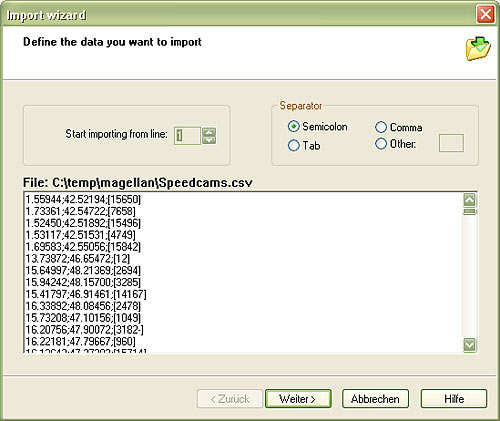
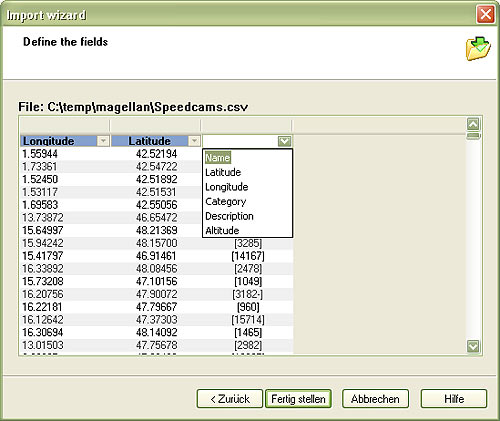
- Establish a relation with the file contents. Give a name for each column. First column is Longitude, the second one is Latitude, and the last one is the Name. Then click Finish.
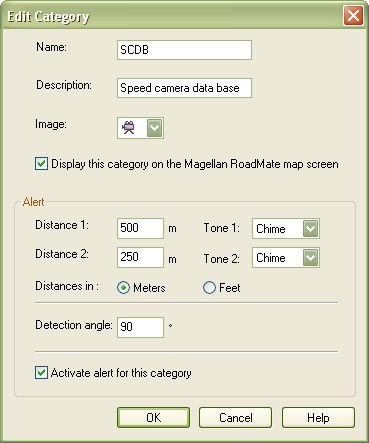
- Select Default category and click Modify. Adjust Distance1 to 500 metres and Distance2 to 250. Set a name and description to identify this group as speedcam. Click on Activate Alert.
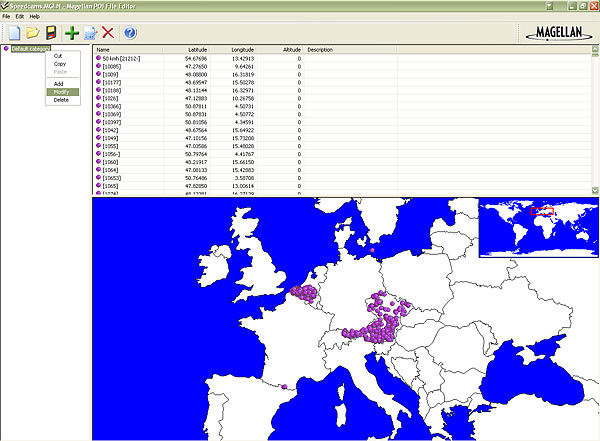
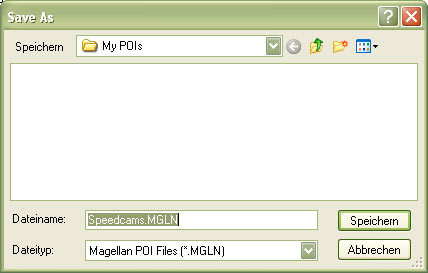
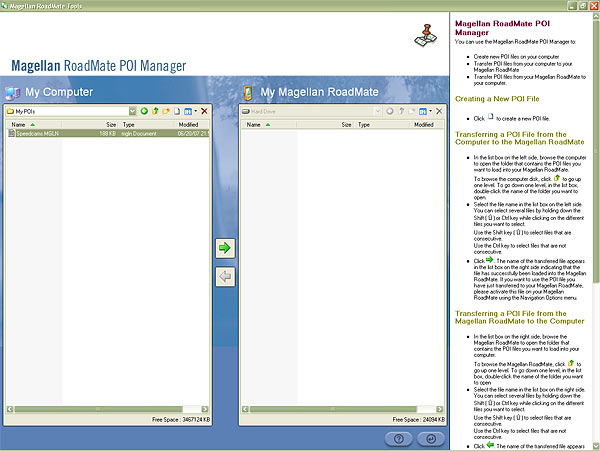
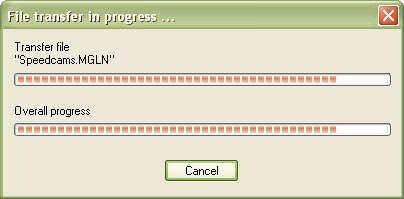
- Go to File | Save As... and save this category in your hard drive with the file name Speedcams.MGLN. Close "Magellan POI File Editor" and go back to "Magellan RoadMate POI Manager". Once finished, proceed to export the file named Speedcams.MGLN to your Magellan Roadmate 2200T device
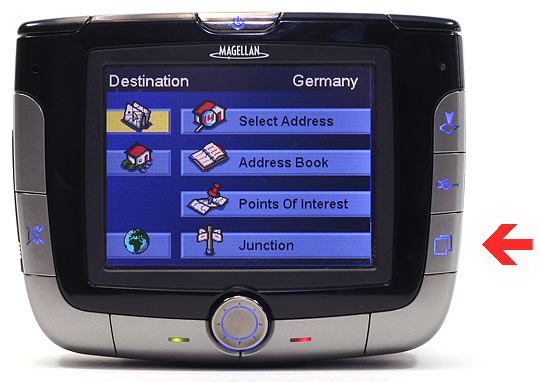
- Disconnect your Magellan Roadmate 2200T device from your PC. Go to system settings, open the following menu Navigation Options/Configuration/Custom POI's/... and select the POI file Speedcams.
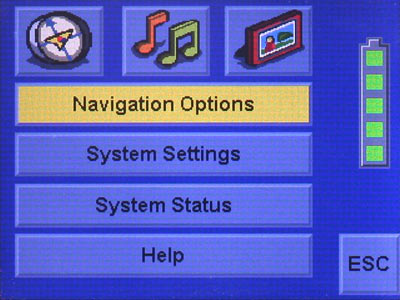
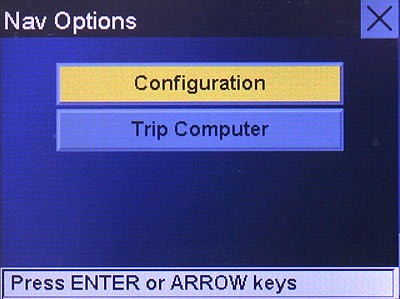
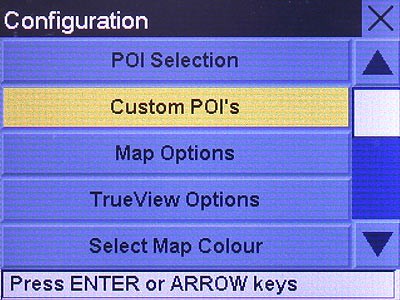
Remember you can customize freely your download. Get access to the customer control panel and using the customization tool in order to get a customized speedcam database according to your needs. You will need this tool if your device doesn't accept the size of the new update. You can add and remove countries speedcam data to your current setup.
Roadmate 2200T Speed Camera Update Information
The Magellan RoadMate 2200T comes preloaded with detailed maps of the United States, Canada, and Puerto Rico. However, users may encounter issues with outdated maps, particularly in regions like Alberta. Regular map updates are essential for ensuring accurate navigation and avoiding potential route discrepancies. While the device does not support automatic updates, users should periodically check for available map updates to enhance their navigation experience. Keeping the map database current can significantly improve route accuracy and overall performance, especially when traveling in less familiar areas.
To update the maps on the Magellan RoadMate 2200T, users can utilize a USB connection or an SD card. First, connect the device to a computer using a USB cable or insert an SD card that contains the updated map files. Users should then access the Magellan software or website to download the latest map updates. Following the on-screen instructions, the new maps can be transferred to the device. It’s important to ensure that the device is fully charged during this process to prevent interruptions that could affect the installation.
The Magellan RoadMate 2200T provides reliable route guidance, utilizing its SiRF Star III GPS chipset for accurate positioning. Users can expect turn-by-turn directions that help navigate to their destinations efficiently. Additionally, the device includes features for speed camera alerts, which can enhance driving safety by notifying users of potential speed traps along their route. This functionality is particularly useful for maintaining compliance with speed limits and avoiding fines, making the RoadMate 2200T a practical tool for everyday navigation.
Looking for additional GPS update information and compatible navigation systems?
GPS Update & Installation Guide