
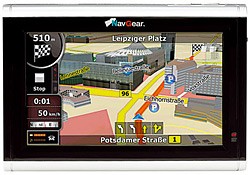
NavGear GTX-60-DVBT
In order to update your GPS device: NavGear GTX-60-DVBT with the latest update, follow next instructions.
First of all, be sure you got the update file for your NavGear GTX-60-DVBT device, downloaded from SpeedcamUpdates.com.
If still haven't got it, you can get it now filling the form you see on this page.
- Extract files from the SpeedcamUpdates zip package. If the file you have downloaded is not a ZIP file means the file is already decompressed, and you can continue with the next step of this installation instructions.
- In order to complete your installation you have to choose your installation method depending on the capabilities of your NavGear GTX-60-DVBT device. If your device supports usb connection, you have to connect it to your PC. Once your device is detected by your PC, look for in the new storage drive, the folder containing the information we want to update. Usually it is contained in ".../CONTENT/speedcam". If your device uses SD memory card, extract it, and plug it into your PC to have access to the folders. Look for the folder ".../CONTENT/speedcam". Remove any previously file contained in the ".../CONTENT/speedcam" folder. (txt file, spud file, spb file ) Copy the unzipped files into that folder (usually it should be a txt file). Then restart your GPS device. The new spud and spb files will be created by the device. Installation is complete.
Remember you can customize freely your download. Get access to the customer control panel and using the customization tool in order to get a customized speedcam database according to your needs. You will need this tool if your device doesn't accept the size of the new update. You can add and remove countries speedcam data to your current setup.
NavGear GTX-60-DVBT Speed Camera Update Information
The NavGear GTX-60-DVBT offers extensive map coverage across Europe, ensuring you have access to detailed and accurate navigation data for your road trips. Regular map database updates are essential for maintaining optimal performance and accuracy. By visiting Naviextras.com, you can easily check for the latest map updates specific to your device. Keeping your maps current allows you to navigate confidently, avoiding outdated routes and ensuring you have the latest points of interest (POIs) and road changes at your fingertips.
Updating your NavGear GTX-60-DVBT is a straightforward process. Begin by connecting your device to a computer using a USB cable. Navigate to Naviextras.com and log into your account to access your registered device. From there, you can select the latest map updates available for download. Once downloaded, transfer the updates to your GPS device via USB. For devices that support SD cards, you can also download updates directly to the card and insert it into your GPS for installation. This manual update process ensures your navigation device remains up-to-date.
The NavGear GTX-60-DVBT provides reliable route guidance, helping you navigate efficiently to your destination. The device is equipped with features that alert you to the presence of speed cameras, enhancing your driving experience by promoting safer navigation. By utilizing the latest map updates, you can ensure that the speed camera locations are accurate and current, allowing you to adhere to speed limits and avoid potential fines. This functionality is particularly useful on unfamiliar roads, making your travels safer and more enjoyable.
Looking for additional GPS update information and compatible navigation systems?
GPS Update & Installation Guide