
Mercedes Clase GLA (X156)
In order to update your GPS device: Mercedes Clase GLA (X156) with the latest update, follow next instructions.
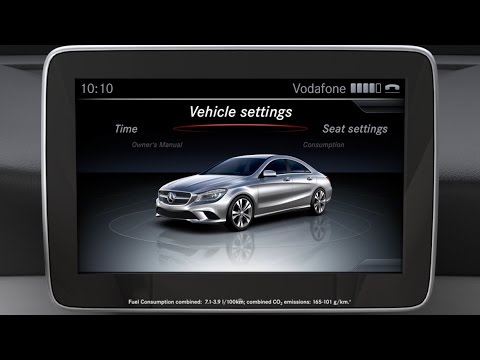
First of all, be sure you got the update file for your Mercedes Clase GLA (X156) device, downloaded from SpeedcamUpdates.com.
If still haven't got it, you can get it now filling the form you see on this page.
- Extract files from the SpeedcamUpdates zip package. If the file you have downloaded is not a ZIP file means the file is already decompressed, and you can continue with the next step of this installation instructions.
- Use an empty sd-card formatted as FAT32.
- Copy and paste all unzipped GPX files into the directory "sd-card/PersonalPOI" of your sd-card.
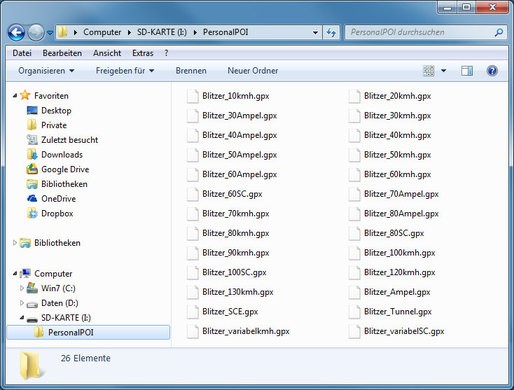
- Take a look into settings menu for importing custom POIs.
- Just for NTG 4.5 devices. In order to import your speed cameras into your Mercedes COMAND Online NTG 4.5 gps device, you have to press button Guide and then select Personal POIs.
- Just for NT 5.0 devices. In order to import your speed cameras into your Mercedes COMAND Online NTG 5.X gps device, you have to press button NAVI. Then select Options. And then select Personal POIs.
There is no choice to copy speed camera information into the hard disk of your Mercedes Clase GLA (X156) gps device. The SD-card has to remain inserted while driving
There is a limit of 30.000 speed cameras that can be stored in the SD-Card. Because of this limitation we suggest to choose the countries you want. You can do this through the customer control panel using the customization tool.
Remember you can customize freely your download. Get access to the customer control panel and using the customization tool in order to get a customized speedcam database according to your needs. You will need this tool if your device doesn't accept the size of the new update. You can add and remove countries speedcam data to your current setup.
Mercedes Clase GLA (X156) Speed Camera Update Information
The Mercedes-Benz GLA (X156) is equipped with a comprehensive navigation system that provides extensive map coverage. To ensure optimal performance, it is essential to keep the map database updated. Regular updates enhance the accuracy of street addresses and points of interest, allowing for more efficient route planning. You can obtain map updates through authorized Mercedes-Benz dealerships or official sources. Staying current with map updates not only improves navigation accuracy but also ensures you have access to the latest road changes and new points of interest, enhancing your overall driving experience.
To install or update the navigation maps on your Mercedes-Benz GLA (X156), you can use a USB drive or an SD card. First, download the latest map update files from the official Mercedes-Benz website or an authorized source. Insert the USB drive or SD card into your computer and transfer the update files. Once completed, start your vehicle and insert the USB or SD card into the appropriate slot. Follow the on-screen prompts on the 10.25" Multimedia Navigation System to initiate the update process. Ensure your vehicle is parked and the engine is running to avoid interruptions during the update.
The navigation system in the Mercedes-Benz GLA (X156) offers precise route guidance, helping you reach your destination efficiently. It provides turn-by-turn directions, recalculates routes in real-time, and can suggest alternative paths based on current traffic conditions. Additionally, the system can alert you to speed camera locations, enhancing your awareness while driving. This feature helps you adhere to speed limits and avoid potential fines. To make the most of these capabilities, familiarize yourself with the navigation interface and settings to customize your route preferences and alerts.
Looking for additional GPS update information and compatible navigation systems?
GPS Update & Installation Guide