
Mercedes Clase E (W213)
In order to update your GPS device: Mercedes Clase E (W213) with the latest update, follow next instructions.

First of all, be sure you got the update file for your Mercedes Clase E (W213) device, downloaded from SpeedcamUpdates.com.
If still haven't got it, you can get it now filling the form you see on this page.
- Extract files from the SpeedcamUpdates zip package. If the file you have downloaded is not a ZIP file means the file is already decompressed, and you can continue with the next step of this installation instructions.
- Use an empty sd-card formatted as FAT32.
- Copy and paste all unzipped GPX files into the directory "sd-card/PersonalPOI" of your sd-card.
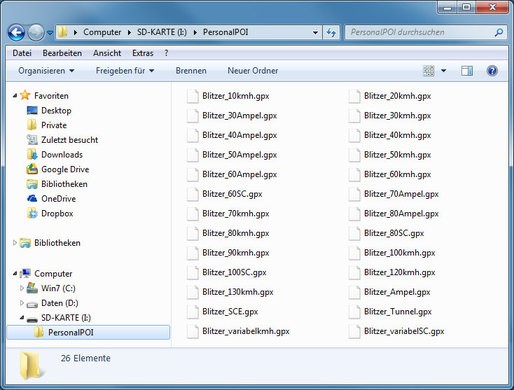
- Take a look into settings menu for importing custom POIs.
- Just for NTG 4.5 devices. In order to import your speed cameras into your Mercedes COMAND Online NTG 4.5 gps device, you have to press button Guide and then select Personal POIs.
- Just for NT 5.0 devices. In order to import your speed cameras into your Mercedes COMAND Online NTG 5.X gps device, you have to press button NAVI. Then select Options. And then select Personal POIs.
There is no choice to copy speed camera information into the hard disk of your Mercedes Clase E (W213) gps device. The SD-card has to remain inserted while driving
There is a limit of 30.000 speed cameras that can be stored in the SD-Card. Because of this limitation we suggest to choose the countries you want. You can do this through the customer control panel using the customization tool.
Remember you can customize freely your download. Get access to the customer control panel and using the customization tool in order to get a customized speedcam database according to your needs. You will need this tool if your device doesn't accept the size of the new update. You can add and remove countries speedcam data to your current setup.
Mercedes Clase E (W213) Speed Camera Update Information
The Mercedes E-Class W213 GPS navigation system relies on a comprehensive map database to provide accurate routing and location services. Regular map updates are essential to ensure that your navigation system reflects the latest road changes, new points of interest, and updated traffic regulations. To maintain optimal performance, it is advisable to check for map updates periodically. These updates can often be obtained through authorized dealers or specific online platforms dedicated to Mercedes navigation systems. Ensuring your maps are current will enhance your driving experience and help avoid navigation errors.
To update the GPS maps on your Mercedes E-Class W213, you will typically use a USB drive or SD card. First, download the latest map updates from a reliable source onto your computer. Next, transfer the files to the USB drive or SD card, ensuring they are in the correct format as specified by the navigation system. Insert the USB or SD card into the vehicle's navigation unit, and follow the on-screen prompts to initiate the update process. It’s important to keep the vehicle running during the update to prevent any interruptions.
The navigation system in the Mercedes E-Class W213 offers detailed route guidance, including turn-by-turn directions and real-time traffic information. Users can input destinations using postcodes or addresses, and the system will calculate the most efficient route. Additionally, the GPS can alert drivers to speed camera locations, enhancing safety and compliance with traffic laws. If you encounter issues, such as the navigation arrow not moving, it may indicate a problem with the GPS antenna or system settings, which may require troubleshooting or professional assistance.
Looking for additional GPS update information and compatible navigation systems?
GPS Update & Installation Guide