
Kenwood KNA-G270TA
In order to update your GPS device: Kenwood KNA-G270TA with the latest update, follow next instructions.
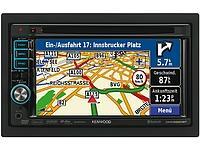
First of all, be sure you got the update file for your Kenwood KNA-G270TA device, downloaded from SpeedcamUpdates.com.
If still haven't got it, you can get it now filling the form you see on this page.
- Extract files from the SpeedcamUpdates zip package. If the file you have downloaded is not a ZIP file means the file is already decompressed, and you can continue with the next step of this installation instructions.
- For kenwood devices that supports SD card.
- Insert in your PC or card reader, a blank SD Memory Card. Run POI loader. In the first screen of POI Loader select "Custom Folder". Now select a folder where the new files will be saved. We choose the SD card drive. Browse to the folder where you extracted the files before. Select Express Mode, and wait for the application finish copying a new binary file for your Kenwood KNA-G270TA device. When the process finished, you will see a new file called poi.gpi. Take out your SD memory card and insert it into your Kenwood KNA-G270TA device. Now you have to copy that file in a specified folder. Now copy that file in a directory structure like [SD]:\garmin\poi\poi.gpi.
- For kenwood devices that does not supports SD card.
- 1. Create a folder on your computer called " garmin ".
* NOTE: Users of models DNX7240BT DNX9240BT have to create a subfolder called " poi ". The final structure should be like this "garmin\poi"
* NOTE: depending on the firmware of your kenwood device your folder called garmin should be called Garmin with upper case G. i.e.: " Garmin \ poi "
2. Run POILoader.
3. Select "Custom Folder "
4. Browse to the folder where you extracted our speed camera database.
5. Follow the on screen instructions.
6. Use POI loader to create the output file from database, choose " Custom Folder" and then select the garmin folder you created in Step 1
7. Browse for your POI folder and follow the on screen instructions.
8. Burn the folder containing the new files into a CD-R. Burn the CD as "Data CD" and be sure to finalize CD.
9. Insert CD into the Kenwood unit and it will be updated automatically.
In orden to transfer the speedcam database information to your Kenwood KNA-G270TA device you have to use POI loader application. Click next link to download it.
POI Loader Software
If you experience that there is no sound when approaching to a speed camera, it probably means your device firmware and maybe your navigation software must be updated.
Kenwood Firmware Update
GPS Software Update
Remember you can customize freely your download. Get access to the customer control panel and using the customization tool in order to get a customized speedcam database according to your needs. You will need this tool if your device doesn't accept the size of the new update. You can add and remove countries speedcam data to your current setup.
Kenwood KNA-G270TA Speed Camera Update Information
The Kenwood KNA-G270TA offers extensive map coverage, ensuring users have access to detailed and accurate navigation data. Regular map database updates are essential for maintaining optimal performance, as they provide the latest road information, points of interest, and changes in traffic regulations. Keeping the map data current enhances the overall navigation experience, allowing for more efficient route planning and improved accuracy in directions. Users should regularly check for updates to ensure they are utilizing the most recent maps available for their region.
Updating the Kenwood KNA-G270TA is straightforward with its USB/SD installation process. Users can download the latest map updates from the Kenwood website onto a USB drive or SD card. Once the updates are downloaded, simply insert the USB or SD card into the device, and follow the on-screen prompts to initiate the update process. This method ensures that the navigation system remains up-to-date with minimal effort, allowing users to focus on their journey without worrying about outdated maps.
The Kenwood KNA-G270TA provides reliable route guidance, helping users navigate efficiently to their destinations. The system includes features for speed camera alerts, which notify drivers of nearby speed enforcement locations. This functionality enhances safety by promoting adherence to speed limits and reducing the risk of fines. By utilizing these features, drivers can enjoy a more informed and secure driving experience, making the most of their navigation system while on the road.
Looking for additional GPS update information and compatible navigation systems?
GPS Update & Installation Guide