
TomTom GO 740 LIVE
In order to update your GPS device: TomTom GO 740 LIVE with the latest update, follow next instructions.
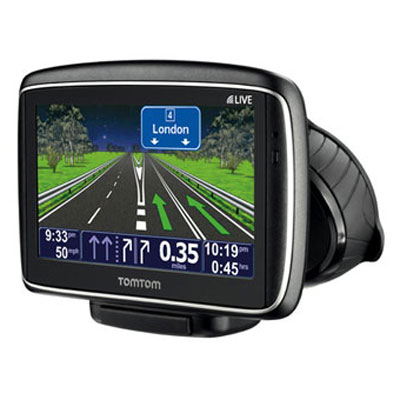
First of all, be sure you got the update file for your TomTom GO 740 LIVE device, downloaded from SpeedcamUpdates.com.
If still haven't got it, you can get it now filling the form you see on this page.
- Extract files from the SpeedcamUpdates zip package. If the file you have downloaded is not a ZIP file means the file is already decompressed, and you can continue with the next step of this installation instructions.
Method 1.
- This method is valid if you're able to connect your TomTom GO 740 LIVE device to your PC Computer and get access to the main shared folder of the device.
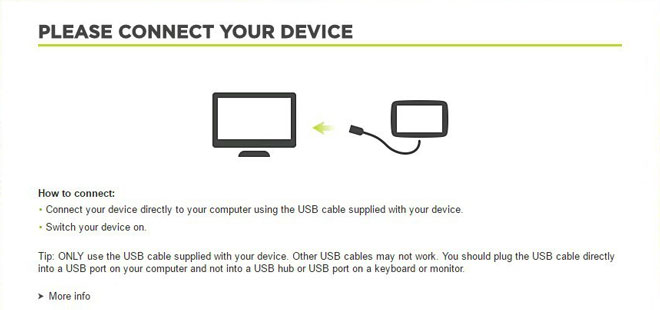
- Plug your TomTom GO 740 LIVE device to your computer thru USB cable. If everything goes well you should see a new drive that you can explore using Windows Explorer or Finder if you use Mac.
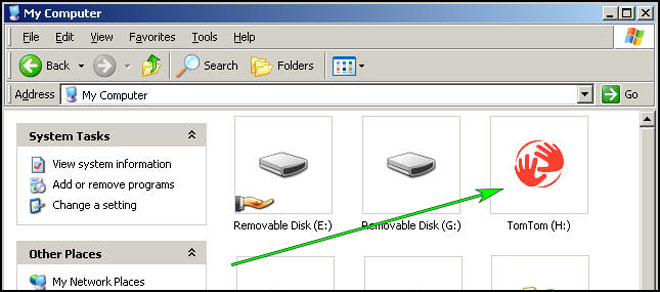
- Using the file explorer look for the folder with a region or country name, like Western Europe, Spain, Italy, United Kingdom.
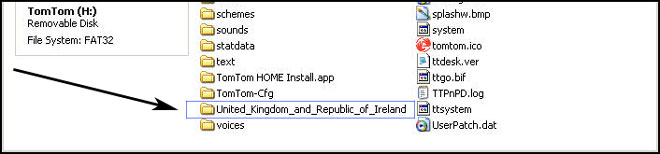
- Copy the extracted files from SpeedcamUpdates, OV2 and BMP, into the map folder you identified in the step before.
- You can enable alerts, and set warning audio when approaching to the speed cameras, in the Enable Alerts section.
- Sign in to your TomTom GO 740 LIVE account
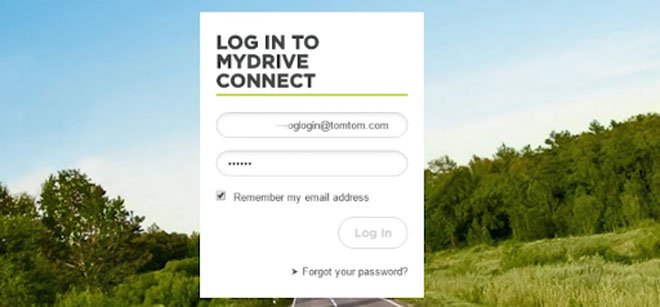
- Register your TomTom GO 740 LIVE device or select it if it is already registered.
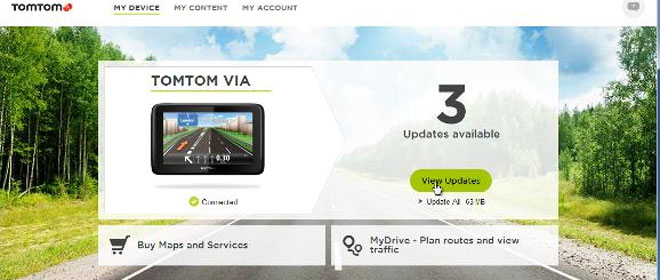
- You're ready now to choose Method 2 or Method 3 for speed cameras installation.
Method 2.
- Using Route Planner
- Go to website: MyDrive
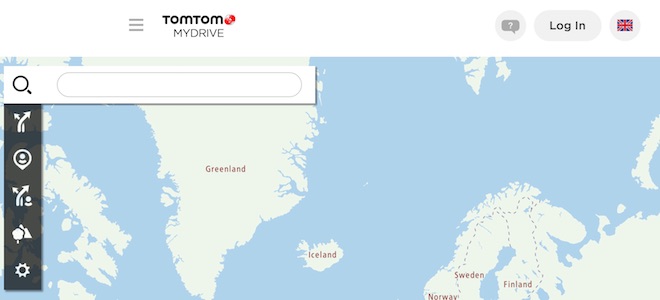
- Do login and click Route Planner => My Places =>POI Files => Import POI file
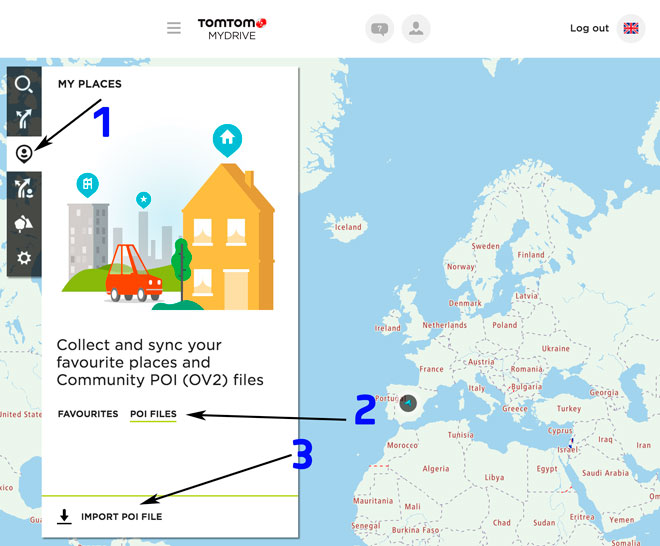
- Select each OV2 file you've downloaded from SpeedcamUpdates and press Import button.
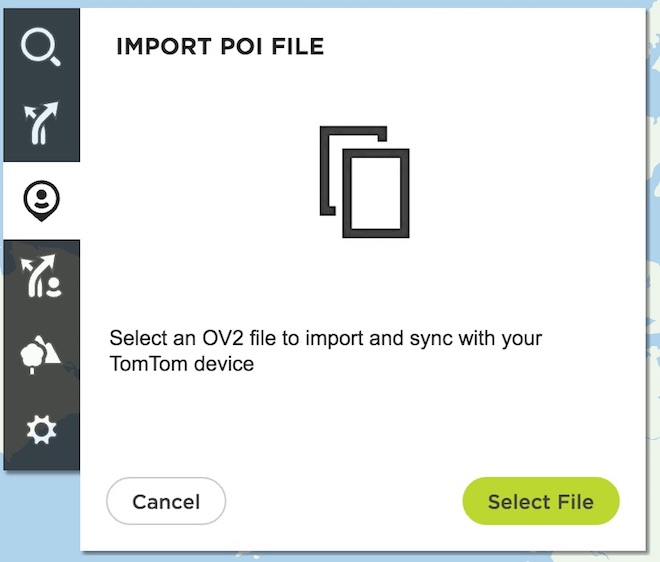
- Files will be automatically transfered to your TomTom GO 740 LIVE device.
- You can enable alerts, and set warning audio when approaching to the speed cameras, in the Enable Alerts section.
Method 3.
- Using Add Community content with MyDrive
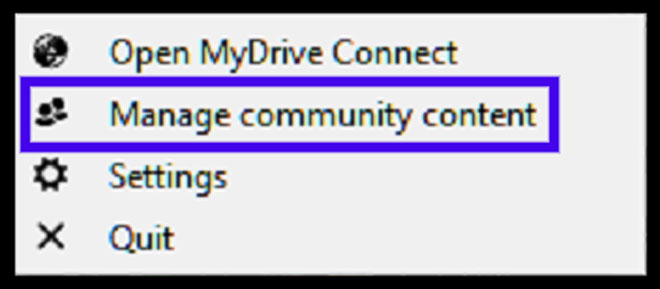
- Right click in MyDrive Connect icon in the system tray and select Manage community content
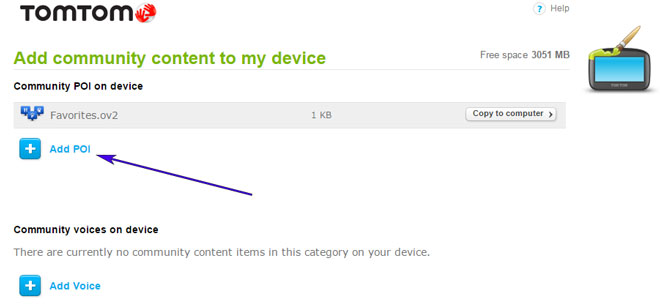
- You have to add each OV2 file downloaded from SpeedcamUpdates by pressing Add Poi button. Remember to add the associated bmp too which is included in the downloaded files.
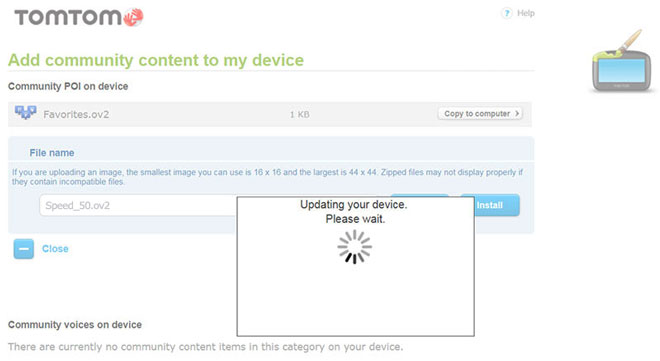
- When you finish press Install to transfer all information to your device.
- Enable Alerts
In order to enable alertes go to Main > Settings > POI settings > Warn when approaching a POI
Search the categories where speedcams are located
Select distance and warning sound per each category
A speaker icon will be shown close to the category name.
There are 3 different methods to install speed cameras in your TomTom device, depending on the capabilities and release date.
In order to use Method 2 or Method 3 you have to install TomTom Software. Follow next instructions to do it.
Download and install software MyDrive from TomTom.
You need a registered TomTom account.
Connect your TomTom device to your computer and run "MyDrive Connect" software.
Remember you can customize freely your download. Get access to the customer control panel and using the customization tool in order to get a customized speedcam database according to your needs. You will need this tool if your device doesn't accept the size of the new update. You can add and remove countries speedcam data to your current setup.
GO 740 LIVE Speed Camera Update Information
The TomTom GO 740 LIVE offers extensive map coverage, ensuring that users can navigate with confidence across various regions. With preloaded maps, the device provides a solid foundation for accurate navigation. Regular map updates are crucial for maintaining the reliability of your GPS device, as they incorporate changes in road layouts, new routes, and updated points of interest. The GO 740 LIVE allows for easy access to map updates, ensuring that your navigation experience remains current and efficient. Staying updated with the latest maps enhances route accuracy and helps avoid potential navigation issues caused by outdated information.
Updating the maps on your TomTom GO 740 LIVE is a straightforward process. Users can connect the device to a computer via USB, allowing for easy transfer of updated map files. Alternatively, if your device supports SD cards, you can also use an SD card for map updates. Simply download the latest maps from the TomTom website and follow the prompts to install them onto your device. This ensures that you have the most accurate and up-to-date navigation data available, enhancing your overall driving experience.
The TomTom GO 740 LIVE excels in route guidance, providing turn-by-turn spoken instructions that include street names for clarity. This feature allows drivers to focus on the road while receiving precise navigation prompts. Additionally, the device is equipped with safety camera alerts, helping users stay informed about speed cameras along their route. This functionality not only aids in adhering to speed limits but also enhances overall road safety. With its reliable route guidance and safety features, the GO 740 LIVE is designed to improve your navigation experience on every journey.
Looking for additional GPS update information and compatible navigation systems?
GPS Update & Installation Guide