
Fiat Blue&Me TomTom 2 LIVE
In order to update your GPS device: Fiat Blue&Me TomTom 2 LIVE with the latest update, follow next instructions.
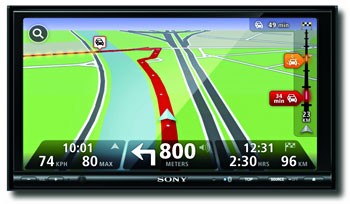
First of all, be sure you got the update file for your Fiat Blue&Me TomTom 2 LIVE device, downloaded from SpeedcamUpdates.com.
If still haven't got it, you can get it now filling the form you see on this page.
- Extract files from the SpeedcamUpdates zip package. If the file you have downloaded is not a ZIP file means the file is already decompressed, and you can continue with the next step of this installation instructions.
Method 1.
- This method is valid if you're able to connect your Fiat Blue&Me TomTom 2 LIVE device to your PC Computer and get access to the main shared folder of the device.
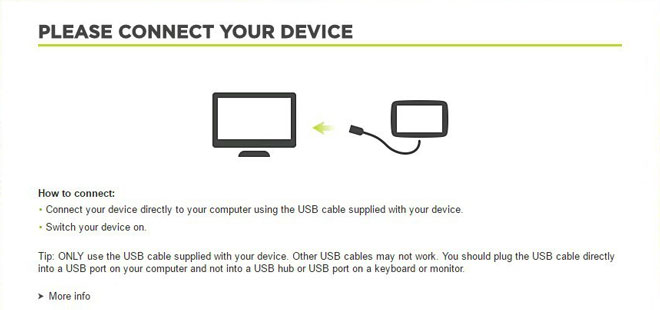
- Plug your Fiat Blue&Me TomTom 2 LIVE device to your computer thru USB cable. If everything goes well you should see a new drive that you can explore using Windows Explorer or Finder if you use Mac.
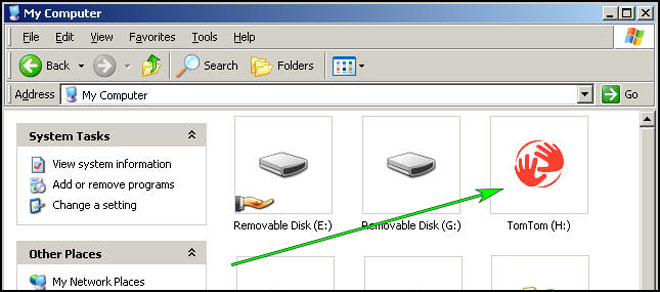
- Using the file explorer look for the folder with a region or country name, like Western Europe, Spain, Italy, United Kingdom.
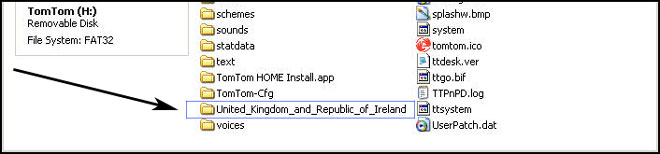
- Copy the extracted files from SpeedcamUpdates, OV2 and BMP, into the map folder you identified in the step before.
- You can enable alerts, and set warning audio when approaching to the speed cameras, in the Enable Alerts section.
- Sign in to your Fiat Blue&Me TomTom 2 LIVE account
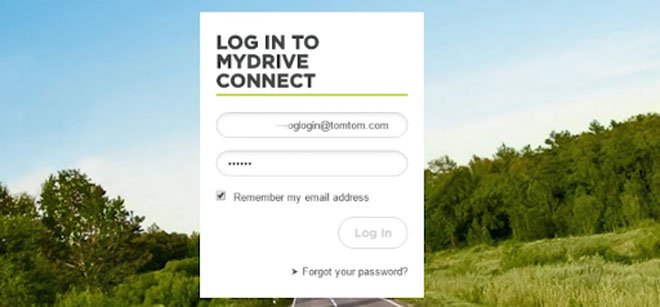
- Register your Fiat Blue&Me TomTom 2 LIVE device or select it if it is already registered.
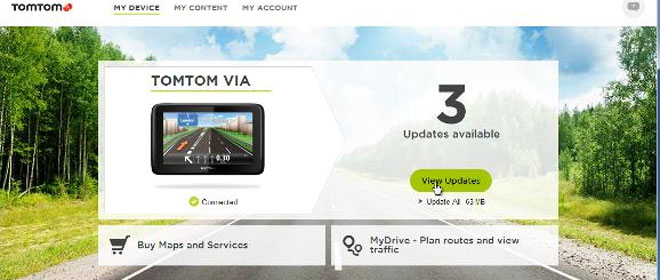
- You're ready now to choose Method 2 or Method 3 for speed cameras installation.
Method 2.
- Using Route Planner
- Go to website: MyDrive
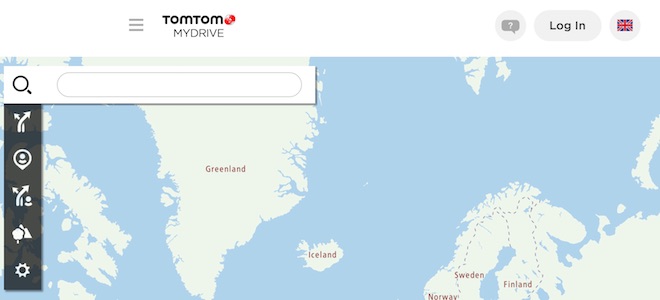
- Do login and click Route Planner => My Places =>POI Files => Import POI file
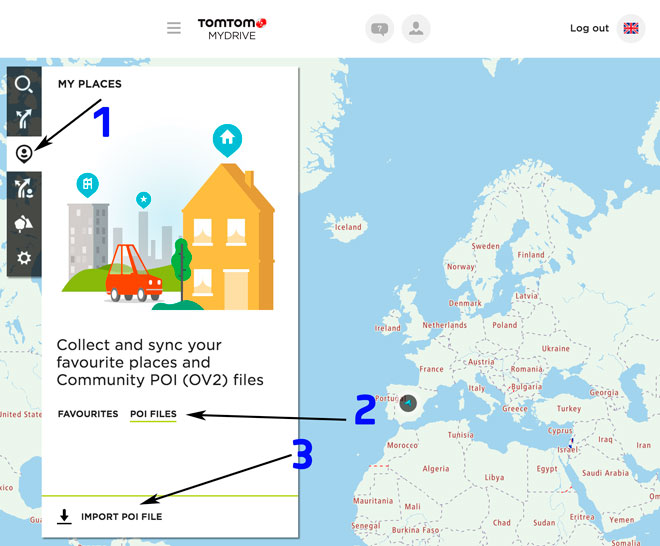
- Select each OV2 file you've downloaded from SpeedcamUpdates and press Import button.
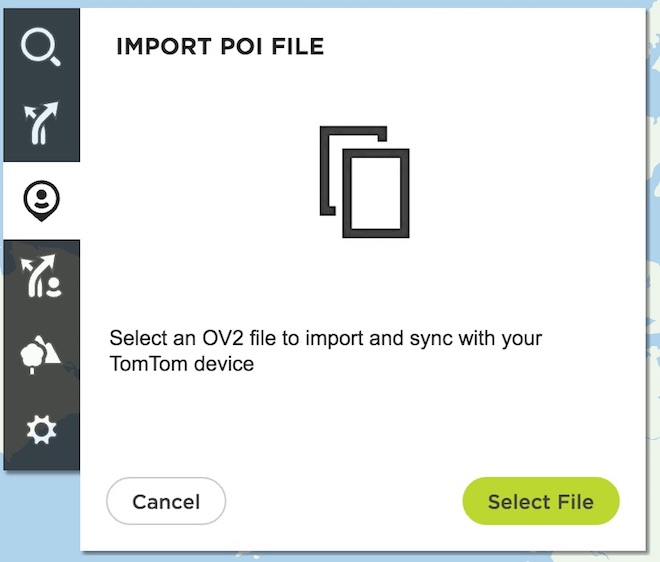
- Files will be automatically transfered to your Fiat Blue&Me TomTom 2 LIVE device.
- You can enable alerts, and set warning audio when approaching to the speed cameras, in the Enable Alerts section.
Method 3.
- Using Add Community content with MyDrive
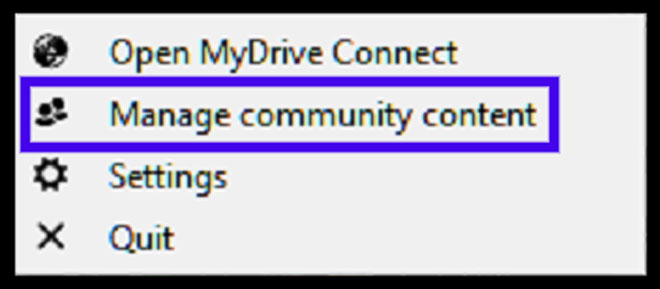
- Right click in MyDrive Connect icon in the system tray and select Manage community content
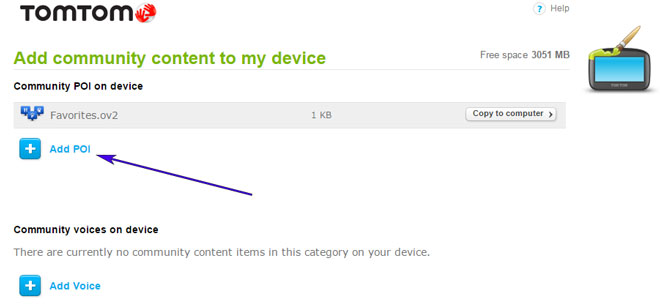
- You have to add each OV2 file downloaded from SpeedcamUpdates by pressing Add Poi button. Remember to add the associated bmp too which is included in the downloaded files.
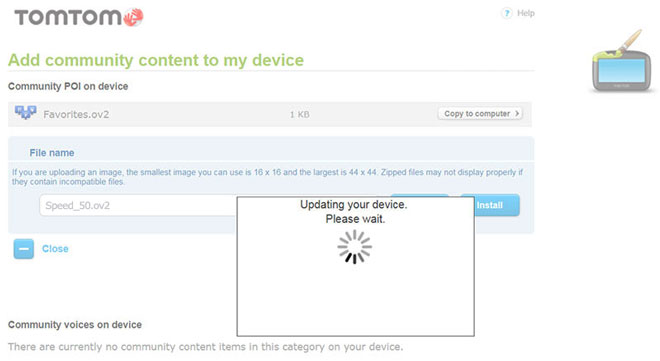
- When you finish press Install to transfer all information to your device.
- Enable Alerts
In order to enable alertes go to Main > Settings > POI settings > Warn when approaching a POI
Search the categories where speedcams are located
Select distance and warning sound per each category
A speaker icon will be shown close to the category name.
There are 3 different methods to install speed cameras in your TomTom device, depending on the capabilities and release date.
In order to use Method 2 or Method 3 you have to install TomTom Software. Follow next instructions to do it.
Download and install software MyDrive from TomTom.
You need a registered TomTom account.
Connect your TomTom device to your computer and run "MyDrive Connect" software.
Remember you can customize freely your download. Get access to the customer control panel and using the customization tool in order to get a customized speedcam database according to your needs. You will need this tool if your device doesn't accept the size of the new update. You can add and remove countries speedcam data to your current setup.
Fiat Blue&Me TomTom 2 LIVE Speed Camera Update Information
The Fiat Blue&Me TomTom 2 LIVE offers extensive map coverage, ensuring that drivers have access to detailed navigation across various regions, including the USA, Canada, and Mexico. Regular map database updates are crucial for maintaining accurate navigation. These updates provide the latest road information, points of interest, and changes in traffic regulations, enhancing the overall driving experience. Users can rely on the device to deliver precise directions and timely rerouting based on the most current maps available, ensuring they stay on the right path regardless of changing conditions.
Updating the Fiat Blue&Me TomTom 2 LIVE is straightforward, utilizing USB or SD card methods for installation. Users can download the latest map updates from the TomTom website onto a computer, then transfer the files to a USB drive or SD card. Once the device is connected to the car, the update process can be initiated directly through the navigation system. This user-friendly workflow ensures that drivers can easily keep their maps current without complicated procedures, allowing for seamless navigation experiences.
The Fiat Blue&Me TomTom 2 LIVE provides reliable route guidance, helping drivers navigate efficiently to their destinations. The device features advanced text-to-speech technology, which announces street names and directions clearly, allowing for hands-free navigation. Additionally, it includes speed camera alerts, enhancing safety by notifying users of potential speed traps along their route. This combination of real-time guidance and safety features ensures that drivers can focus on the road while receiving timely information about their journey.
Looking for additional GPS update information and compatible navigation systems?
GPS Update & Installation Guide