
Garmin Colorado 300 (audio alert is not available)
In order to update your GPS device: Garmin Colorado 300 (audio alert is not available) with the latest update, follow next instructions.
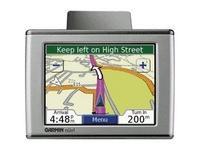
First of all, be sure you got the update file for your Garmin Colorado 300 (audio alert is not available) device, downloaded from SpeedcamUpdates.com.
If still haven't got it, you can get it now filling the form you see on this page.
- Extract files from the SpeedcamUpdates zip package. If the file you have downloaded is not a ZIP file means the file is already decompressed, and you can continue with the next step of this installation instructions.
- Connect your Garmin Colorado 300 (audio alert is not available) device using an USB cable to your PC. Now run POI Loader. Select the folder where you extracted the files before. Continue with Express Mode and finish your installation. The information will be transferred to your Garmin Colorado 300 (audio alert is not available) device.
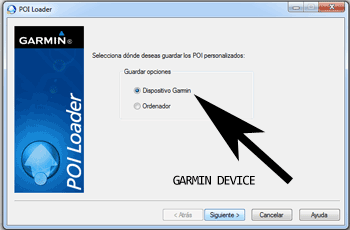
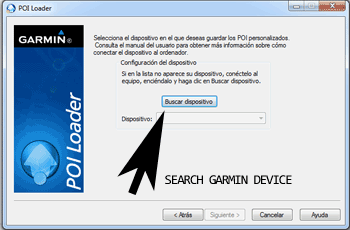
- So, as explained before, select the target folder on your hard disk which contains the unzipped files of our database. Now you can choose between Express mode and Manual mode. Select Express Mode.
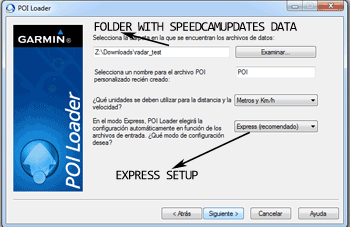
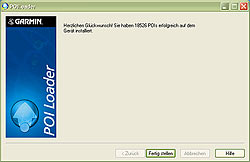
- In this mode all settings are given by POI Loader. Push Next button and all speed cameras will be installed.
In orden to transfer the speedcam database information to your Garmin Colorado 300 (audio alert is not available) device you have to use POI loader application. Click next link to download it.
POI Loader Software
Remember you can customize freely your download. Get access to the customer control panel and using the customization tool in order to get a customized speedcam database according to your needs. You will need this tool if your device doesn't accept the size of the new update. You can add and remove countries speedcam data to your current setup.
Colorado 300 (audio alert is not available) Speed Camera Update Information
The Garmin Colorado 300 offers extensive map coverage suitable for various outdoor activities, including hiking and boating. To ensure optimal navigation, it is essential to keep the map database updated. Regular updates can enhance the accuracy of your routes and provide new points of interest. Users should check for the latest map versions compatible with the Colorado 300 to avoid issues like getting stuck on the loading maps screen. Keeping your maps current not only improves navigation efficiency but also ensures you have access to the most recent geographical information.
Updating the Garmin Colorado 300's maps involves a straightforward process using USB or SD card installation. First, connect the device to a computer via USB or insert an SD card containing the map updates. Access the Garmin website to download the latest map files. Once downloaded, transfer the files to the appropriate directory on the device or SD card. After the transfer is complete, safely eject the device or card and restart the Colorado 300. This process ensures that your GPS has the latest maps for accurate navigation.
The Garmin Colorado 300 provides reliable route guidance, allowing users to navigate effectively to their desired destinations. While it does not support audio alerts, visual cues on the 3" backlit LCD display help users stay on track. Additionally, the device can assist in identifying speed camera locations, enhancing safety during navigation. Users can access these features through the Shortcuts menu, ensuring a seamless navigation experience. By utilizing the Colorado 300's capabilities, users can confidently explore new areas without the fear of getting lost.
Looking for additional GPS update information and compatible navigation systems?
GPS Update & Installation Guide