
Becker Traffic Assist Z 113
In order to update your GPS device: Becker Traffic Assist Z 113 with the latest update, follow next instructions.
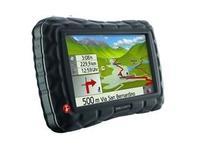
First of all, be sure you got the update file for your Becker Traffic Assist Z 113 device, downloaded from SpeedcamUpdates.com.
If still haven't got it, you can get it now filling the form you see on this page.
- Extract files from the SpeedcamUpdates zip package. If the file you have downloaded is not a ZIP file means the file is already decompressed, and you can continue with the next step of this installation instructions.
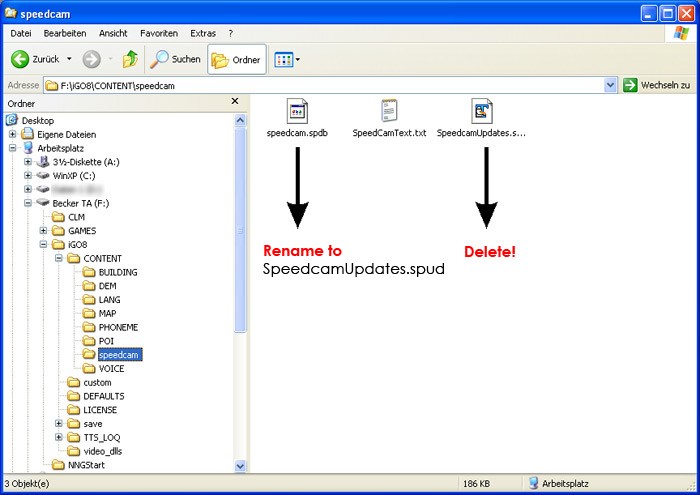
- Connect your Becker Traffic Assist Z 113 device using an USB cable to your PC. Once your PC has detected your GPS device as an external storage drive open the folder "./iGO8/CONTENT/speedcam". Copy in this folder the files extracted from the zip file before.
- Once the files have been copied into your Becker Traffic Assist Z 113 device, unplug USB cable and then reboot the Becker Traffic Assist Z 113 device.
- When the Becker Traffic Assist Z 113 device finishes its startup, connect it again to your PC. Open again the folder "./iGO8/CONTENT/speedcam". Now you will see two more files, called speedcam.spdb and SpeedcamUpdates.spud respectively. Delete the file called SpeedcamUpdates.spud. Finally rename "speedcam.spdb" as SpeedcamUpdates.spud
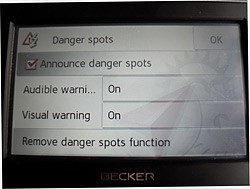
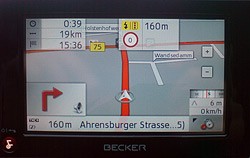
- Unplug your Becker Traffic Assist Z 113 device from your PC. Reboot your Becker Traffic Assist Z 113 device. Now, go outside to get GPS coverage. Check that a new menu has been created. Go to "Settings/Navigation settings/Danger spot" or "Settings/Navigation settings/speedcam". Double check that every option is adjusted to your preferences.
 |  |
Remember you can customize freely your download. Get access to the customer control panel and using the customization tool in order to get a customized speedcam database according to your needs. You will need this tool if your device doesn't accept the size of the new update. You can add and remove countries speedcam data to your current setup.
Becker Traffic Assist Z 113 Speed Camera Update Information
The Becker Traffic Assist Z 113 offers comprehensive map coverage, ensuring that users have access to the latest routes and road information. Regular map updates are essential for avoiding outdated routes, road closures, and unnecessary detours. By keeping your maps current, you can navigate efficiently and reduce travel time. The device's map database is designed to provide accurate and reliable information, enhancing your overall navigation experience. This ensures that you can confidently reach your destination without the frustration of encountering unexpected obstacles along the way.
To update the maps on your Becker Traffic Assist Z 113, connect the device to your PC using the provided USB cable. Once connected, your GPS device will appear as an external drive on your computer. You can then download the latest map updates from the Becker website and transfer them directly to your device. This straightforward process allows you to keep your navigation system up to date with minimal effort, ensuring that you always have access to the most current road information.
The Becker Traffic Assist Z 113 excels in route guidance, providing clear and intuitive directions to help you reach your destination efficiently. The device also features speed camera alerts, which notify you of potential speed traps along your route. This functionality enhances your driving experience by promoting safer driving habits and helping you avoid fines. With its user-friendly interface, the Becker Traffic Assist Z 113 ensures that you can focus on the road while receiving timely navigation assistance.
Looking for additional GPS update information and compatible navigation systems?
GPS Update & Installation Guide