
Becker Traffic Assist Z 089
In order to update your GPS device: Becker Traffic Assist Z 089 with the latest update, follow next instructions.
First of all, be sure you got the update file for your Becker Traffic Assist Z 089 device, downloaded from SpeedcamUpdates.com.
If still haven't got it, you can get it now filling the form you see on this page.
- Extract files from the SpeedcamUpdates zip package. If the file you have downloaded is not a ZIP file means the file is already decompressed, and you can continue with the next step of this installation instructions.
- Connect your Becker Traffic Assist Z 089 device using an USB cable to your PC. Once your PC has detected your GPS device as an external storage drive open the folder "./iGO8/CONTENT/speedcam". Copy in this folder the files extracted from the zip file before.
- Once the files have been copied into your Becker Traffic Assist Z 089 device, unplug USB cable and then reboot the Becker Traffic Assist Z 089 device.
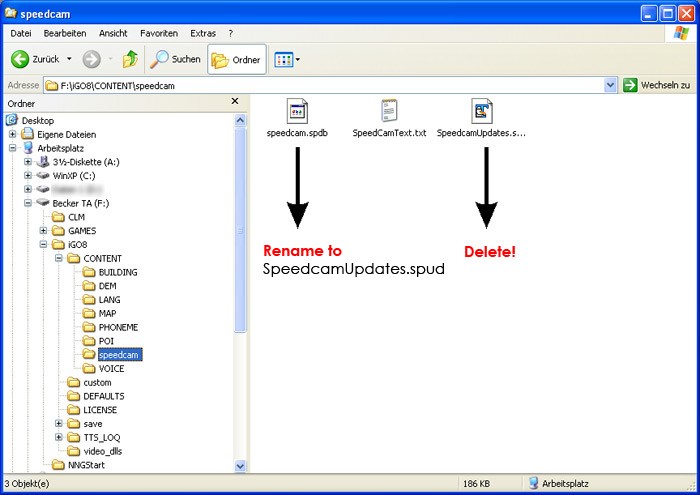
- When the Becker Traffic Assist Z 089 device finishes its startup, connect it again to your PC. Open again the folder "./iGO8/CONTENT/speedcam". Now you will see two more files, called speedcam.spdb and SpeedcamUpdates.spud respectively. Delete the file called SpeedcamUpdates.spud. Finally rename "speedcam.spdb" as SpeedcamUpdates.spud
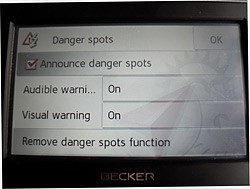
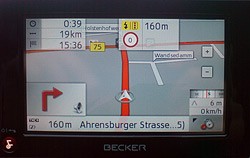
- Unplug your Becker Traffic Assist Z 089 device from your PC. Reboot your Becker Traffic Assist Z 089 device. Now, go outside to get GPS coverage. Check that a new menu has been created. Go to "Settings/Navigation settings/Danger spot" or "Settings/Navigation settings/speedcam". Double check that every option is adjusted to your preferences.
 |  |
Remember you can customize freely your download. Get access to the customer control panel and using the customization tool in order to get a customized speedcam database according to your needs. You will need this tool if your device doesn't accept the size of the new update. You can add and remove countries speedcam data to your current setup.
Becker Traffic Assist Z 089 Speed Camera Update Information
The Becker Traffic Assist Z 089 offers extensive map coverage, ensuring that users have access to detailed navigation across various regions. Regular map database updates are crucial for maintaining accurate routing and point-of-interest information. These updates can include new roads, changes in traffic patterns, and updated points of interest, which enhance the overall navigation experience. Keeping the map database current is essential for effective route planning and avoiding outdated information that could lead to navigation errors.
Updating the Becker Traffic Assist Z 089 is a straightforward process that involves using a USB or SD card. Users can download the latest map updates from the official Becker website onto a compatible USB drive or SD card. Once the updates are downloaded, simply insert the device into the GPS unit, and follow the on-screen prompts to initiate the installation. This method ensures that users can easily keep their navigation system up to date without needing specialized tools or software.
The Becker Traffic Assist Z 089 provides reliable route guidance, helping users navigate efficiently to their destinations. The system features clear visual and audible instructions, allowing for easy understanding of upcoming turns and maneuvers. Additionally, the device includes speed camera alerts, which notify users of potential speed traps along their route. This feature enhances driving safety by encouraging compliance with speed limits and helping drivers avoid fines.
Looking for additional GPS update information and compatible navigation systems?
GPS Update & Installation Guide