
AvMap Geosat 5 Blu e
In order to update your GPS device: AvMap Geosat 5 Blu e with the latest update, follow next instructions.
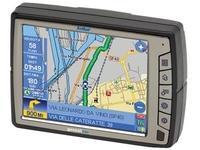
First of all, be sure you got the update file for your AvMap Geosat 5 Blu e device, downloaded from SpeedcamUpdates.com.
If still haven't got it, you can get it now filling the form you see on this page.
- Extract files from the SpeedcamUpdates zip package. If the file you have downloaded is not a ZIP file means the file is already decompressed, and you can continue with the next step of this installation instructions.
- Run GeoSatUpdate and Click the button "database transfer".
- Select the folder where you saved our speed camera data. The speedcam database will be transferred to your AvMap Geosat 5 Blu e device. When finished, turn on your AvMap Geosat 5 Blu e device.
- Your installation has finished.
- If you want, you can download an alarm sound from this link.
You will need the software for your AvMap Geosat 5 Blu e device. You can get the latest updated version from next link.
GSUPDATE 5
Remember you can customize freely your download. Get access to the customer control panel and using the customization tool in order to get a customized speedcam database according to your needs. You will need this tool if your device doesn't accept the size of the new update. You can add and remove countries speedcam data to your current setup.
AvMap Geosat 5 Blu e Speed Camera Update Information
The AvMap Geosat 5 Blu e offers extensive map coverage, ensuring users have access to detailed and accurate navigation data. Regular map database updates are essential for maintaining optimal performance and accuracy. Users can download the latest maps from the AvMap website, which include updates for various regions and points of interest. Keeping your maps current allows for improved route planning and navigation efficiency, ensuring that you are always guided by the most reliable information available.
To install and update maps on the AvMap Geosat 5 Blu e, users can utilize either a USB connection or an SD card. First, download the desired map updates from the AvMap Downloads section. If using a USB connection, simply connect the device to your computer and transfer the files directly. For SD card updates, insert the card into your computer, copy the map files, and then reinsert the card into the GPS device. Following these steps ensures that your navigation system is equipped with the latest map data for accurate routing.
The AvMap Geosat 5 Blu e provides precise route guidance, helping users navigate efficiently to their destinations. The device features real-time navigation prompts, ensuring that users receive timely directions throughout their journey. Additionally, the unit can alert users to speed camera locations, enhancing safety and compliance with traffic regulations. By utilizing these features, drivers can focus on the road while the Geosat 5 Blu e manages navigation and alerts, making for a smoother driving experience.
Looking for additional GPS update information and compatible navigation systems?
GPS Update & Installation Guide