
Garmin zumo 550
In order to update your GPS device: Garmin zumo 550 with the latest update, follow next instructions.
First of all, be sure you got the update file for your Garmin zumo 550 device, downloaded from SpeedcamUpdates.com.
If still haven't got it, you can get it now filling the form you see on this page.
- Extract files from the SpeedcamUpdates zip package. If the file you have downloaded is not a ZIP file means the file is already decompressed, and you can continue with the next step of this installation instructions.
- Connect your Garmin zumo 550 device using an USB cable to your PC. Now run POI Loader. Select the folder where you extracted the files before. Continue with Express Mode and finish your installation. The information will be transferred to your Garmin zumo 550 device.
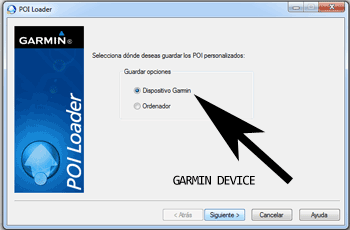
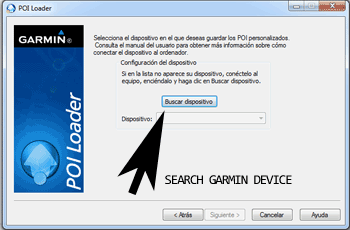
- So, as explained before, select the target folder on your hard disk which contains the unzipped files of our database. Now you can choose between Express mode and Manual mode. Select Express Mode.
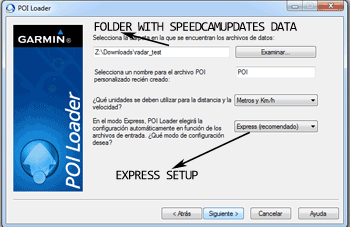
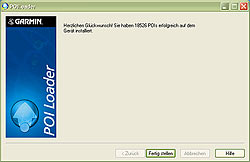
- In this mode all settings are given by POI Loader. Push Next button and all speed cameras will be installed.
In orden to transfer the speedcam database information to your Garmin zumo 550 device you have to use POI loader application. Click next link to download it.
POI Loader Software
Remember you can customize freely your download. Get access to the customer control panel and using the customization tool in order to get a customized speedcam database according to your needs. You will need this tool if your device doesn't accept the size of the new update. You can add and remove countries speedcam data to your current setup.
zumo 550 Speed Camera Update Information
The Garmin z?mo 550 offers extensive map coverage, ensuring you have access to detailed routes and points of interest. Regular map database updates are essential for maintaining accurate navigation. These updates can include new roads, changes in traffic patterns, and updated points of interest, which enhance your overall navigation experience. Keeping your maps current allows you to explore new areas confidently and ensures that you are following the most efficient routes available. To check for updates, visit the Garmin website or use the MapSource software, which provides the latest map data for your z?mo 550.
Updating your z?mo 550 maps is a straightforward process. Begin by connecting the device to your computer using a USB cable. If you are using a MicroSD/SD card for map storage, ensure it is properly inserted into the device. Next, access the Garmin Express application or MapSource software to download the latest map updates. Follow the on-screen instructions to install the updates onto your device or SD card. Once the installation is complete, safely disconnect your z?mo 550 and restart the device to ensure the new maps are loaded and ready for navigation.
The z?mo 550 provides reliable route guidance, helping you navigate through various terrains and road conditions. With its preloaded maps, the device offers turn-by-turn directions, ensuring you stay on track during your journeys. Additionally, the z?mo 550 can alert you to speed camera locations, enhancing your awareness and helping you adhere to speed limits. This feature is particularly useful for long rides, as it allows you to focus on the road while receiving timely notifications about potential speed traps, contributing to a safer riding experience.
Looking for additional GPS update information and compatible navigation systems?
GPS Update & Installation Guide