
Becker Traffic Assist Z 203
In order to update your GPS device: Becker Traffic Assist Z 203 with the latest update, follow next instructions.
First of all, be sure you got the update file for your Becker Traffic Assist Z 203 device, downloaded from SpeedcamUpdates.com.
If still haven't got it, you can get it now filling the form you see on this page.
- Extract files from the SpeedcamUpdates zip package. If the file you have downloaded is not a ZIP file means the file is already decompressed, and you can continue with the next step of this installation instructions.
- Connect your Becker Traffic Assist Z 203 device using an USB cable to your PC. Once your PC has detected your GPS device as an external storage drive open the folder "./iGO8/CONTENT/speedcam". Copy in this folder the files extracted from the zip file before.
- Once the files have been copied into your Becker Traffic Assist Z 203 device, unplug USB cable and then reboot the Becker Traffic Assist Z 203 device.
- When the Becker Traffic Assist Z 203 device finishes its startup, connect it again to your PC. Open again the folder "./iGO8/CONTENT/speedcam". Now you will see two more files, called speedcam.spdb and SpeedcamUpdates.spud respectively. Delete the file called SpeedcamUpdates.spud. Finally rename "speedcam.spdb" as SpeedcamUpdates.spud
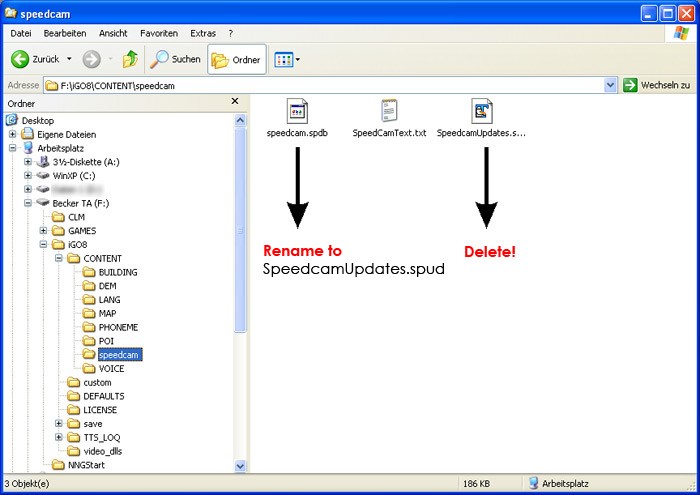
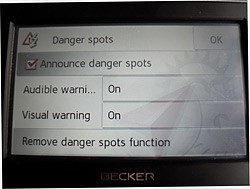
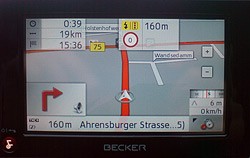
- Unplug your Becker Traffic Assist Z 203 device from your PC. Reboot your Becker Traffic Assist Z 203 device. Now, go outside to get GPS coverage. Check that a new menu has been created. Go to "Settings/Navigation settings/Danger spot" or "Settings/Navigation settings/speedcam". Double check that every option is adjusted to your preferences.
 |  |
Remember you can customize freely your download. Get access to the customer control panel and using the customization tool in order to get a customized speedcam database according to your needs. You will need this tool if your device doesn't accept the size of the new update. You can add and remove countries speedcam data to your current setup.
Becker Traffic Assist Z 203 Speed Camera Update Information
The Becker Traffic Assist Z 203 offers extensive map coverage across Europe, ensuring that users have access to detailed and accurate navigation information. Regular map database updates are essential for maintaining optimal performance and accuracy. These updates include new roads, changes in traffic patterns, and updated points of interest, which enhance the overall navigation experience. To ensure you are using the latest maps, it is recommended to check for updates periodically. Keeping your device's map database current allows for more efficient route planning and improved navigation reliability.
Updating the Becker Traffic Assist Z 203 is a straightforward process that can be accomplished via USB or SD card. To initiate the update, first, download the latest map files from the Becker website onto your computer. Then, transfer these files to a USB drive or SD card. Insert the USB or SD card into the device, and follow the on-screen prompts to complete the installation. This method ensures that your navigation system is equipped with the most recent maps, enhancing your driving experience with accurate routing information.
The Becker Traffic Assist Z 203 provides precise route guidance with features such as turn-by-turn navigation and 3D views, making it easier to follow directions. Additionally, the device includes functionality for speed camera alerts, helping drivers stay informed about potential speed traps along their route. This feature not only aids in compliance with traffic regulations but also enhances overall road safety. By utilizing these navigation tools effectively, users can navigate with confidence and reduce the likelihood of unexpected delays.
Looking for additional GPS update information and compatible navigation systems?
GPS Update & Installation Guide