
Alpine INE-W987D
In order to update your GPS device: Alpine INE-W987D with the latest update, follow next instructions.
First of all, be sure you got the update file for your Alpine INE-W987D device, downloaded from SpeedcamUpdates.com.
If still haven't got it, you can get it now filling the form you see on this page.
- Extract files from the SpeedcamUpdates zip package. If the file you have downloaded is not a ZIP file means the file is already decompressed, and you can continue with the next step of this installation instructions.
- The installation procedure has three main steps. Prepare your SD memory card. Gathering information from your Alpine INE-W987D device. And finally the installation of the speedcam database.
- Plug a SD card formatted in FAT or FAT32 (Do not use NTFS) into your PC. Then copy the folder named autorun in the root folder of your SD memory card.
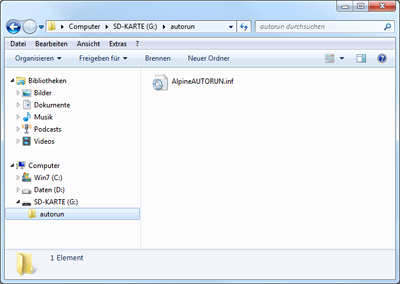
- Extract the SD card from your PC and go to your car. Open the display to get access to the SD card slot. Plug in the SD card into the Alpine INE-W987D. Close the display, and turn on your Alpine INE-W987D. Change to ignition position in the car.
- Synctool starts up. Press the button "Collect device information". Once the procedure has finished press OK button. Then press Quit and confirm your choice with Yes.
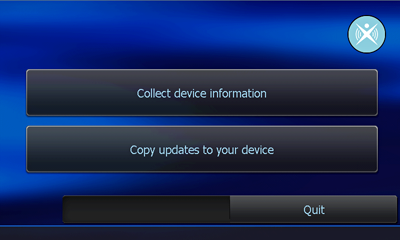
- Remove your SD card from the Alpine INE-W987D. Alpine INE-W987D could restart itself automatically.
- Plug your SD card into your PC again. Copy the folder identified as BACKUP, that you extracted before, in the autorun folder of your SD card. Then back to your car again, and repeat the procedure to plug in your SD card into your Alpine INE-W987D.
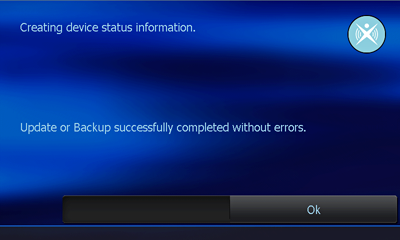
- Synctool starts up. Press the button “Copy updates to your device” this time. Confirm with Yes to start the procedure. When finished press Quit and confirm with Yes. Your Alpine INE-W987D has been updated!.
Remember you can customize freely your download. Get access to the customer control panel and using the customization tool in order to get a customized speedcam database according to your needs. You will need this tool if your device doesn't accept the size of the new update. You can add and remove countries speedcam data to your current setup.
Alpine INE-W987D Speed Camera Update Information
The Alpine INE-W987D features comprehensive map coverage, ensuring you have access to detailed navigation data across various regions. Regular map database updates are essential for maintaining accuracy in your navigation experience. By utilizing the Naviextras Toolbox, you can easily check for the latest map updates specific to your device. Keeping your maps current allows for improved route planning and helps you avoid outdated information, ensuring a smoother journey. It is recommended to periodically review and install updates to take full advantage of the latest road changes, points of interest, and navigation enhancements.
To install map updates for the Alpine INE-W987D, you will need an SD card recognized by your navigation device. Begin by downloading the Naviextras Toolbox software on your computer. Insert the SD card into your computer and launch the software to access available updates. Follow the prompts to select and purchase the desired map content. Once the download is complete, safely eject the SD card and insert it back into the INE-W987D. The device will automatically recognize the updated maps, allowing you to enjoy the latest navigation features without hassle.
The Alpine INE-W987D provides reliable route guidance, ensuring you reach your destination efficiently. With its advanced navigation capabilities, the device offers clear directions and real-time updates to keep you informed throughout your journey. Additionally, the INE-W987D supports speed camera alerts, helping you stay aware of speed limits and avoid potential fines. This feature enhances your driving experience by promoting safer navigation. By regularly updating your maps, you can ensure that speed camera locations are current, further enhancing the effectiveness of this feature during your travels.
Looking for additional GPS update information and compatible navigation systems?
GPS Update & Installation Guide