
Alpine INE-W925R
In order to update your GPS device: Alpine INE-W925R with the latest update, follow next instructions.
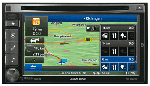
First of all, be sure you got the update file for your Alpine INE-W925R device, downloaded from SpeedcamUpdates.com.
If still haven't got it, you can get it now filling the form you see on this page.
- Extract files from the SpeedcamUpdates zip package. If the file you have downloaded is not a ZIP file means the file is already decompressed, and you can continue with the next step of this installation instructions.
- The installation procedure has three main steps. Prepare your MicroSD memory card. Gathering information from your Alpine INE-W925R device. And finally the installation of the speedcam database.
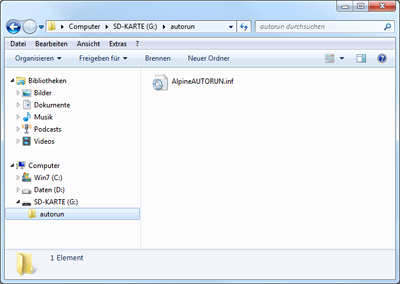
- Plug a MicroSD card formatted in FAT or FAT32 (Do not use NTFS) into your PC. Then copy the folder named autorun in the root folder of your MicroSD memory card.
- Extract the MicroSD card from your PC and go to your car. Remove the detachable faceplate to access the MicroSD card slot. Plug in the MicroSD card into the Alpine INE-W925R. Apply the detachable faceplate, and turn on your Alpine INE-W925R. Change to ignition position in the car.
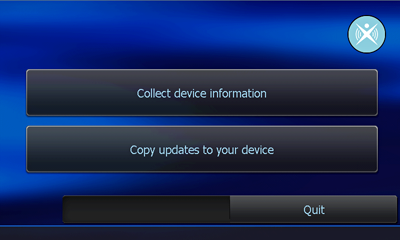
- Synctool starts up. Press the button "Collect device information". Once the procedure has finished press OK button. Then press Quit and confirm your choice with Yes.
- Remove your MicroSD card from the Alpine INE-W925R. Alpine INE-W925R could restart itself automatically.
- Plug your MicroSD card into your PC again. Copy the folder identified as BACKUP, that you extracted before, in the autorun folder of your MicroSD card. Then back to your car again, and repeat the procedure to plug in your MicroSD card into your Alpine INE-W925R.
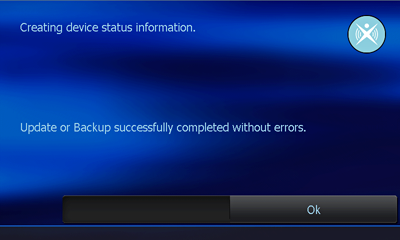
- Synctool starts up. Press the button “Copy updates to your device” this time. Confirm with Yes to start the procedure. When finished press Quit and confirm with Yes. Your Alpine INE-W925R has been updated!.
Remember you can customize freely your download. Get access to the customer control panel and using the customization tool in order to get a customized speedcam database according to your needs. You will need this tool if your device doesn't accept the size of the new update. You can add and remove countries speedcam data to your current setup.
Alpine INE-W925R Speed Camera Update Information
The Alpine INE-W925R offers extensive map coverage, but keeping your maps updated is crucial for optimal navigation. To ensure you have the latest road information, you will need to access the map database updates provided by Alpine. These updates can enhance your navigation experience by including new roads, points of interest, and changes in traffic patterns. Regularly checking for updates will help you avoid outdated routes and ensure accurate guidance during your travels.
Since the Alpine INE-W925R does not have a USB or SIM card slot, updating your maps requires a different approach. You will need to use an SD card for the update process. First, download the latest map update files from the Alpine website onto your computer. Next, transfer these files to an SD card. Insert the SD card into the INE-W925R, and follow the on-screen instructions to complete the installation. Make sure to back up your existing maps before proceeding with the update.
The Alpine INE-W925R provides reliable route guidance, ensuring you reach your destination efficiently. It features real-time traffic information, which can help you avoid delays caused by congestion or road closures. Additionally, the device can alert you to speed camera locations, enhancing your awareness while driving. Utilizing these features effectively can improve your overall navigation experience, allowing for safer and more informed travel decisions.
Looking for additional GPS update information and compatible navigation systems?
GPS Update & Installation Guide