
Renault MediaNav - Evolution 1 (MN1)
In order to update your GPS device: Renault MediaNav - Evolution 1 (MN1) with the latest update, follow next instructions.
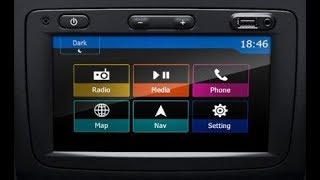
First of all, be sure you got the update file for your Renault MediaNav - Evolution 1 (MN1) device, downloaded from SpeedcamUpdates.com.
If still haven't got it, you can get it now filling the form you see on this page.
- Extract files from the SpeedcamUpdates zip package. If the file you have downloaded is not a ZIP file means the file is already decompressed, and you can continue with the next step of this installation instructions.
- Using an USB stick formatted in FAT32 copy all the files you extracted in the step before.
- Start your car and plug in your USB stick into your Medianav device.
- In order to do the installation using MN1 ( MediaNav 1 ) you have to follow the next installation instructions.
- The installation is made thru a hidden menu. Because of that you need to get access to the System Information menu to see what is the version of your model. Depending on the version you own, you will have to use a different secret code.
- Back to main menu and select Settings. Move to second page and select system version.
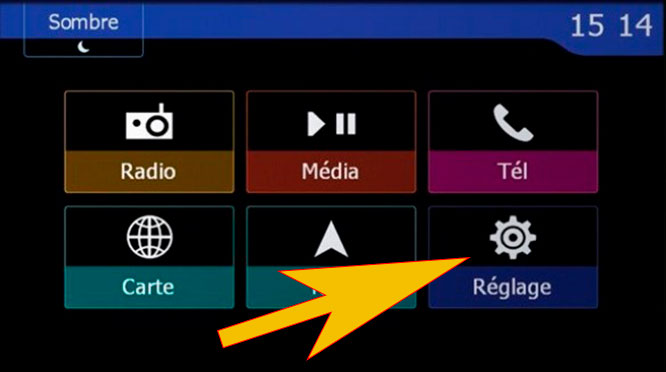
- Follow the image to touch in the indicated boxes keeping the sequence order.
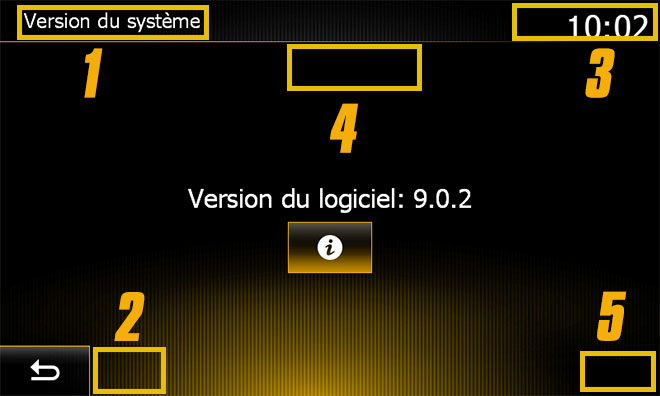
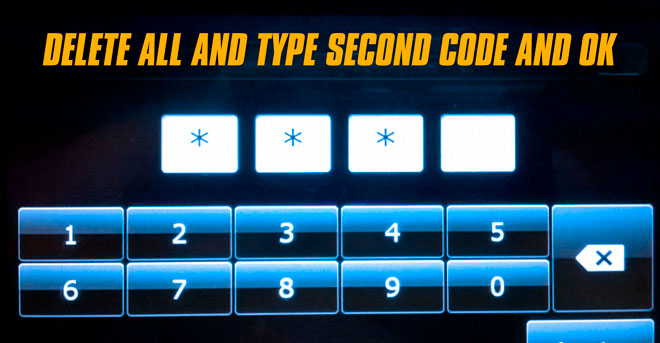
- You see now the first screen to enter code. According to your system version, and the box shown above in this web page, type the first 4 digits and press OK button.
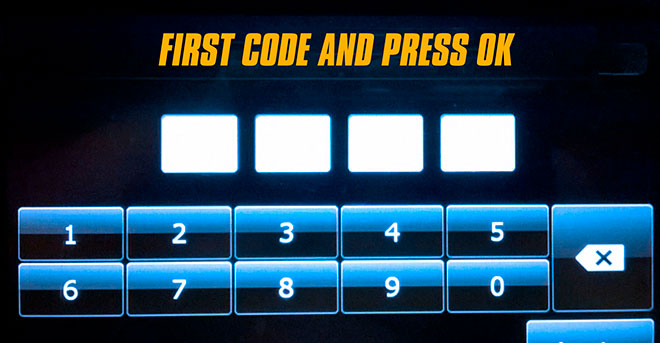
- Once you pressed OK, delete the 4 digits by pressing delete key four times. Now type the 4 digits of the second code, shown in the box above in this web page and press OK button.
- If everything went well, at this point, you will see the Windows CE screen.
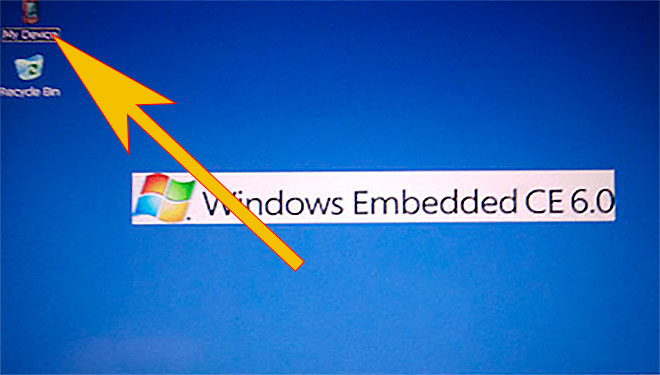
- Touch MyDevice icon at the top left to start the file manager
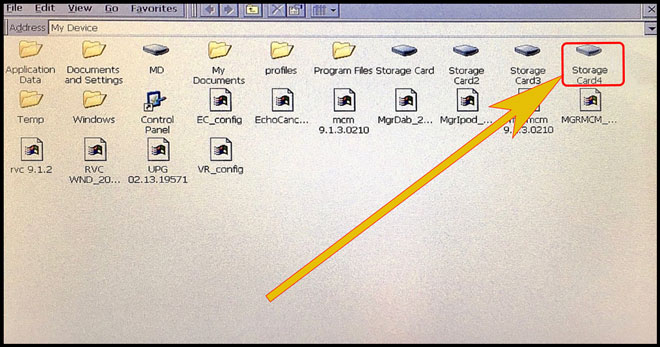
- Using the file explorer touch "Storage_Card_4". When the folder is open you will see a file named ULC2_recovery.exe. Run it by double clicking on it. The SpeedcamUpdates.spb file will be copied in the right folder automatically.
- After a couple of seconds you will see a message about successfull installation. You can follow the next steps to enable the SpeedcamUpdates icons to be shown on the map.
- Once you are in the map. Touch the boton named as Destination
- Select Map POIS settings
- Now select the right arrow in the option: special target icon
- Look for the SpeedcamUpdates category icon and enable it to allow to be shown on the map.
Desktop WinCE MN1
Secret code: 8005 and 3638
Desktop WinCe MNE 8.0.5
Secret code: 0362 and 6971
Desktop WinCE MNE 9.1.1
Secret code: 2383 and 3748
In order to see the SpeedcamUpdates icons on the map follow the next instructions. Valid for MediaNav devices MN1,MN2 and MN3.
Remember you can customize freely your download. Get access to the customer control panel and using the customization tool in order to get a customized speedcam database according to your needs. You will need this tool if your device doesn't accept the size of the new update. You can add and remove countries speedcam data to your current setup.
Renault MediaNav - Evolution 1 (MN1) Speed Camera Update Information
The Renault MediaNav Evolution 1 (MN1) relies on a comprehensive map database to provide accurate navigation. Regular updates to this map coverage are essential for ensuring that your GPS system reflects the latest road changes, new routes, and points of interest. To maintain optimal performance, users should periodically check for available map updates, which can enhance the overall navigation experience. Keeping your maps current not only improves route accuracy but also helps in avoiding outdated information that could lead to navigation errors.
Updating the Renault MediaNav GPS maps involves a straightforward USB or SD card installation process. First, download the latest map update files from a reliable source. Next, insert the USB drive or SD card into your computer and transfer the downloaded files. Once the files are ready, insert the USB or SD card into the MediaNav device. Follow the on-screen prompts to initiate the update process. Ensure that the vehicle is in a safe location and that the device remains powered throughout the update to prevent any interruptions.
The Renault MediaNav Evolution 1 provides essential route guidance features, including turn-by-turn directions and real-time traffic updates. Users can also benefit from speed camera alerts, which enhance driving safety by notifying them of speed enforcement zones. To utilize these features effectively, ensure that your map database is up to date, as this will provide the most accurate information regarding speed limits and camera locations. Regular updates help maintain the reliability of these navigation functions, ensuring a smoother driving experience.
Looking for additional GPS update information and compatible navigation systems?
GPS Update & Installation Guide